General format
This is the default format when you enter a value in a cell.

- But it’s also known as the ‘Clean’ format.
- In other words, applying this format removes all special formatting (percentage, date, time, etc.).
The keyboard shortcut for applying the General format is Ctrl+Shift+~ (tilde).
Decimal numbers
- By default, the Number format assigns two decimal places to your numerical values.
- You can add or remove decimal places by clicking this icon (next to the number format).
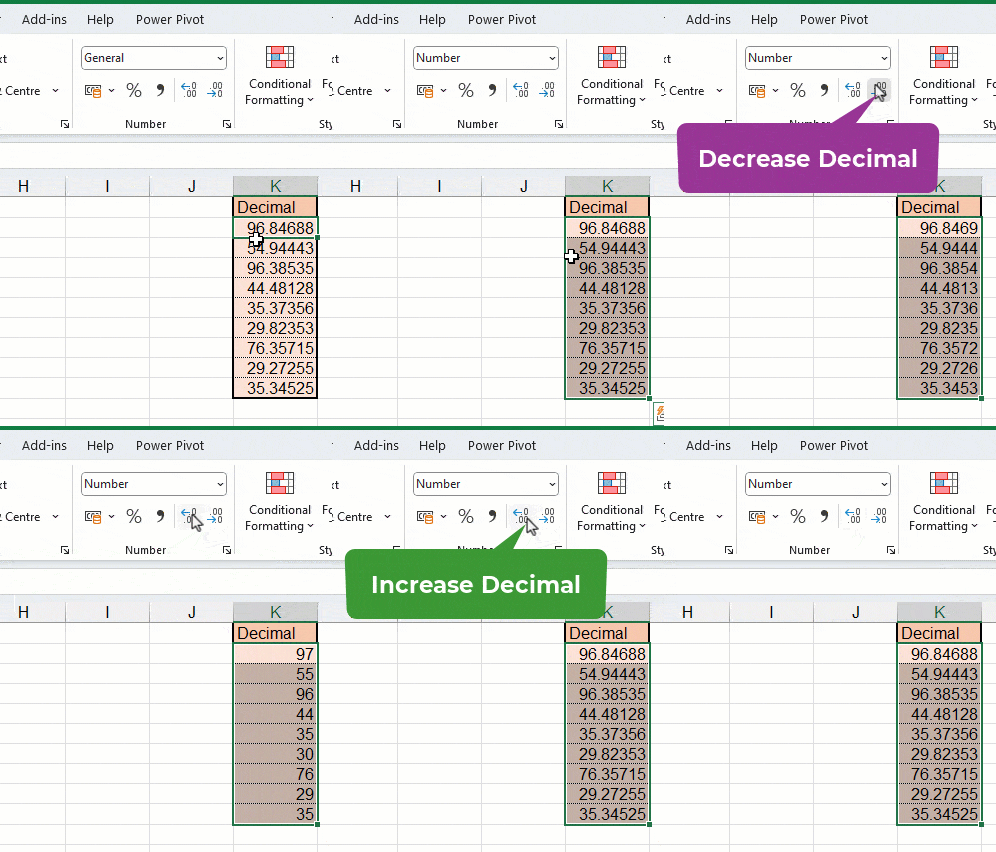
CAUTION: Increasing or decreasing decimal places has no impact on the original value.
- In the formula bar, you see the original number (with all the decimal places)
- In the cell, you see the same number formatted with only two decimal places

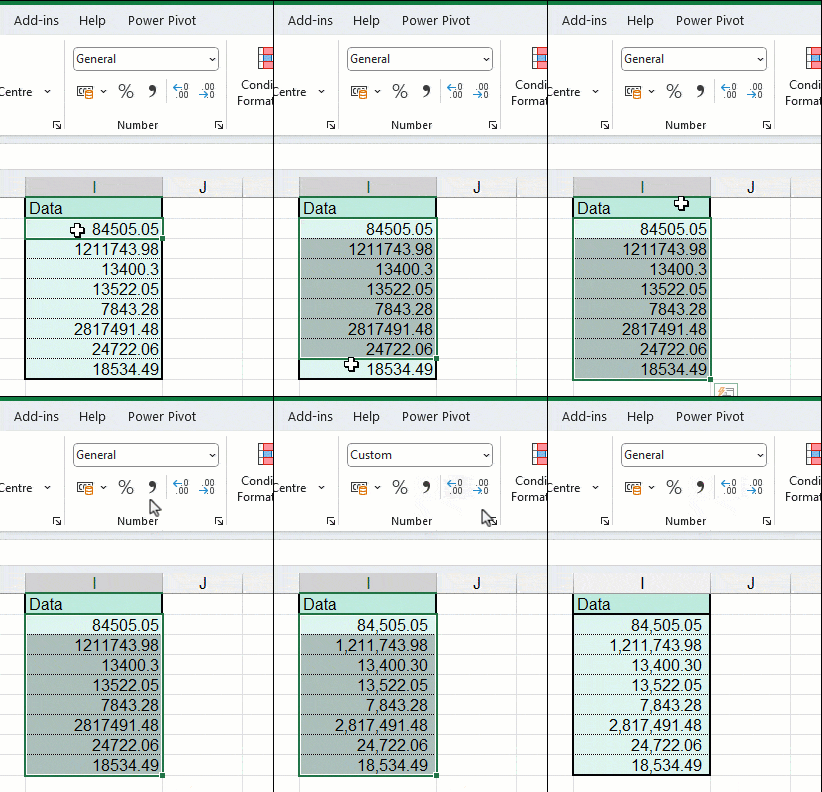
Thousand format
This format does not appear in the list of number formats but only in the ribbon. The Thousand format automatically adds a comma every three digits (thousands and millions), making large numbers easier to read 😉
Currency and accounting formats
These formats are almost similar (a few differences in alignment, nothing more).
- They add the currency symbol (€, $, £, etc.) to your numbers
- The Thousand format (a comma between each group of three digits) is added automatically too.
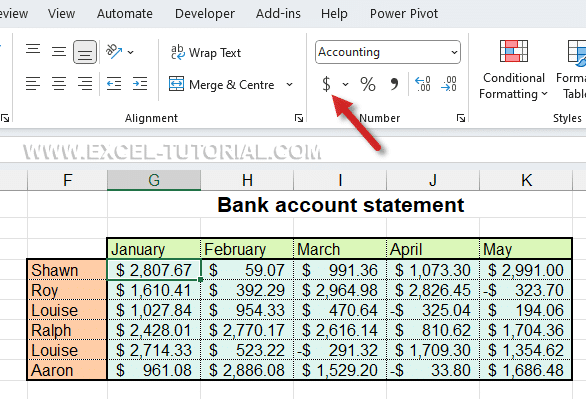
The currency symbol shown depends on your computer’s regional settings: in the US, Canada, or Australia, it defaults to the Dollar; in the UK, to the Pound.
You can change specific settings (such as the currency symbol and the red color for negative numbers) by clicking:
- On the additional options arrow
- Select the currency format
- The type of display you want (negative numbers in red in this example)

Percentage format
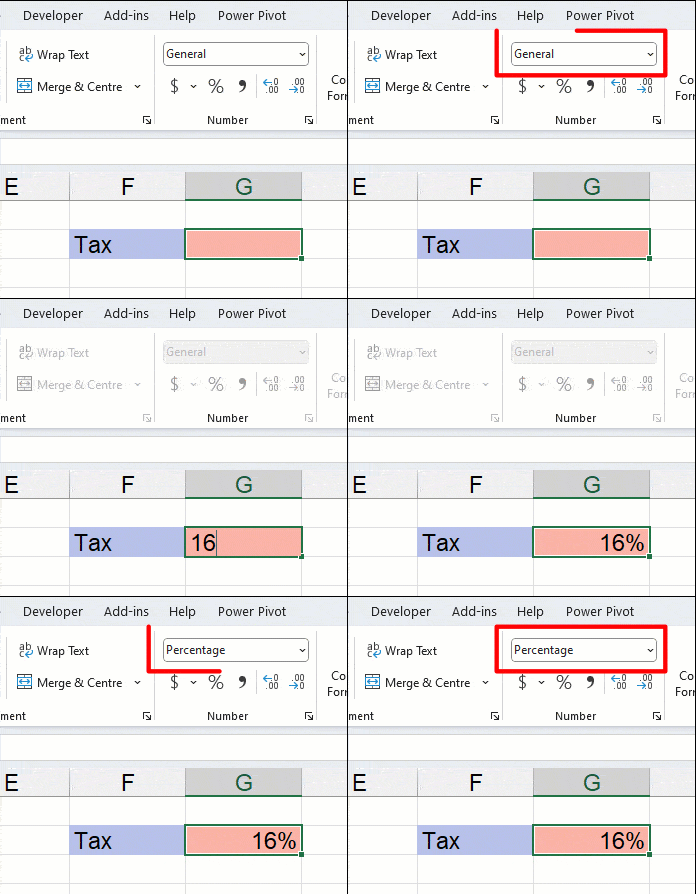
You can apply the Percentage format by:
- Clicking the percentage icon in the Ribbon
- Or selecting the percentage format from the drop-down menu

For the percentage format, the value is automatically multiplied by 100.
- In A1, you have the value 4. By applying the percentage format, the cell will display 400%.
- In A2, you have the value 0.04. Using the percentage format, the cell will display 4%.
You can also just type the % symbol directly after your number — Excel automatically applies the Percentage format to the cell.
Date format
Dates are essential in Excel. They are often used in calculations or to group data by month or year. But above all, a date is just a number with a specific format applied to it.
For example, if you type any date into a cell, Excel automatically applies the Date format (just like it does for percentages). If you switch back to the General format, you’ll see a number, like 45018, instead of the date.

In fact, a date is simply a whole number that Excel displays using a date format. Excel’s date system starts at 01/01/1900 — as a numerical value, a date cannot exist before that point.
Worked example: turning a plain number into a date
The value 1 is in cell D1. What will happen when you apply the Date format to cell D1?

Remember: a date is a whole number in Excel, and the starting point is 01/01/1900. So the value 1 corresponds to the very first day — cell D1 will display 01/01/1900 once the Date format is applied.
Time format
In Excel, an hour is always expressed as a decimal number between 0 and 0.999999.
This is easy to understand, given that a date is always expressed as a whole number.
- Date = Whole number
- Time = Decimal number between 0 and 0.999999
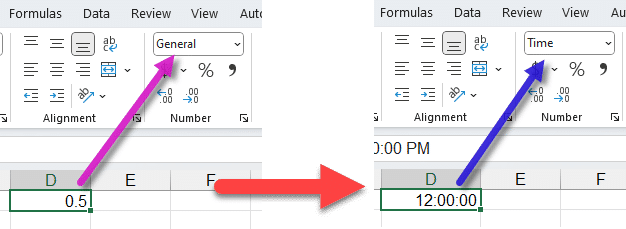
If a cell contains 0.5 and you apply the Time format, the result is 12:00:00 (half a day).
However, many people mistakenly enter their time as whole numbers. This doesn’t work: applying the Time format to a whole number always returns 00:00:00 (midnight).
In the following example, Excel interprets 8 as 8 days, not 8 hours. That’s why the cell shows 00:00:00 in Time format, while the formula bar shows 08/01/1900 — eight days after Excel’s first day.
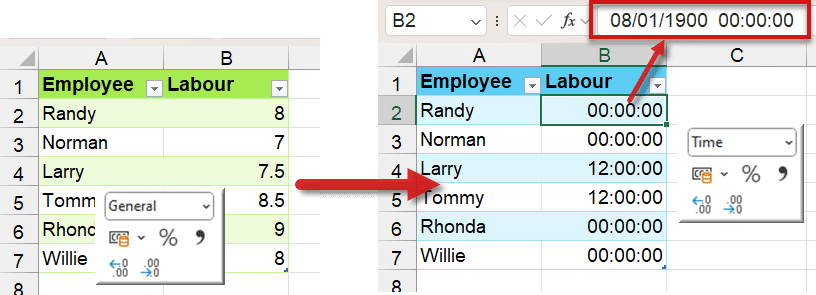
- When the value is 0.5, in Time format it’s 12:00:00 (half a day)
- To convert a whole number into an hour, divide it by 24, the number of hours in a day 😉
You now know how to read and apply the main number formats in Excel: General, Decimal, Thousand, Currency, Percentage, Date and Time — and how the same underlying number can be displayed in very different ways depending on the format you choose.
Continue learning
Keep building your Excel skills with the rest of this tutorial series:
- Tutorial – Excel keywords
- Tutorial – Adjusting the Size of rows and columns
- Tutorial – How to make calculations in Excel
- Tricks to Insert, Delete, Hide Rows and Columns
- Tutorial – All Excel tricks to Copy-Paste
- Tutorial – Moving cells or columns with the mouse
- Tutorial – Excel Alignment text tips
- Learn the secrets of Sorting Data with Excel
- Excel Tutorial – Filtering your data
- Manipulate Text in Excel without formula
- Excel Tutorial – Creating a dropdown menu
- Learn how to use the SUM function in Excel
- Tutorial for the Excel Functions AVERAGE, MIN, and MAX
- Learn how to use the Dollars in an Excel formula


