Merge cells
You want to merge two cells, like Firstname and Lastname, for more than 100 rows… What do you do?
Copy them one by one? 🤔 That’s the idea, but this is where AI helps you: Excel “understands” the pattern you write and fills in the other cells for you. Magic? No — FlashFill. 😀
For example, we want to combine the first name and the last name.
- Select the cell adjacent to the table (the tool should be attached to the data table)
- Write the result you want: ‘HAYLOM Simon’
- Go to the next line
- Start typing the first letters of the last name — here, just M
- Excel automatically suggests a list based on the first value you entered
- If the list matches what you want, just confirm by pressing Enter
- That’s it! You’ve combined the first and last names for all the other cells. 👍

FlashFill is case-sensitive (uppercase/lowercase).
In this new example, we want the first and last names in lowercase.

Merge with more complex input
FlashFill also lets you create more elaborate combinations than just merging the contents of two cells. For example, here we write the last name followed by the initial of the first name and a period.
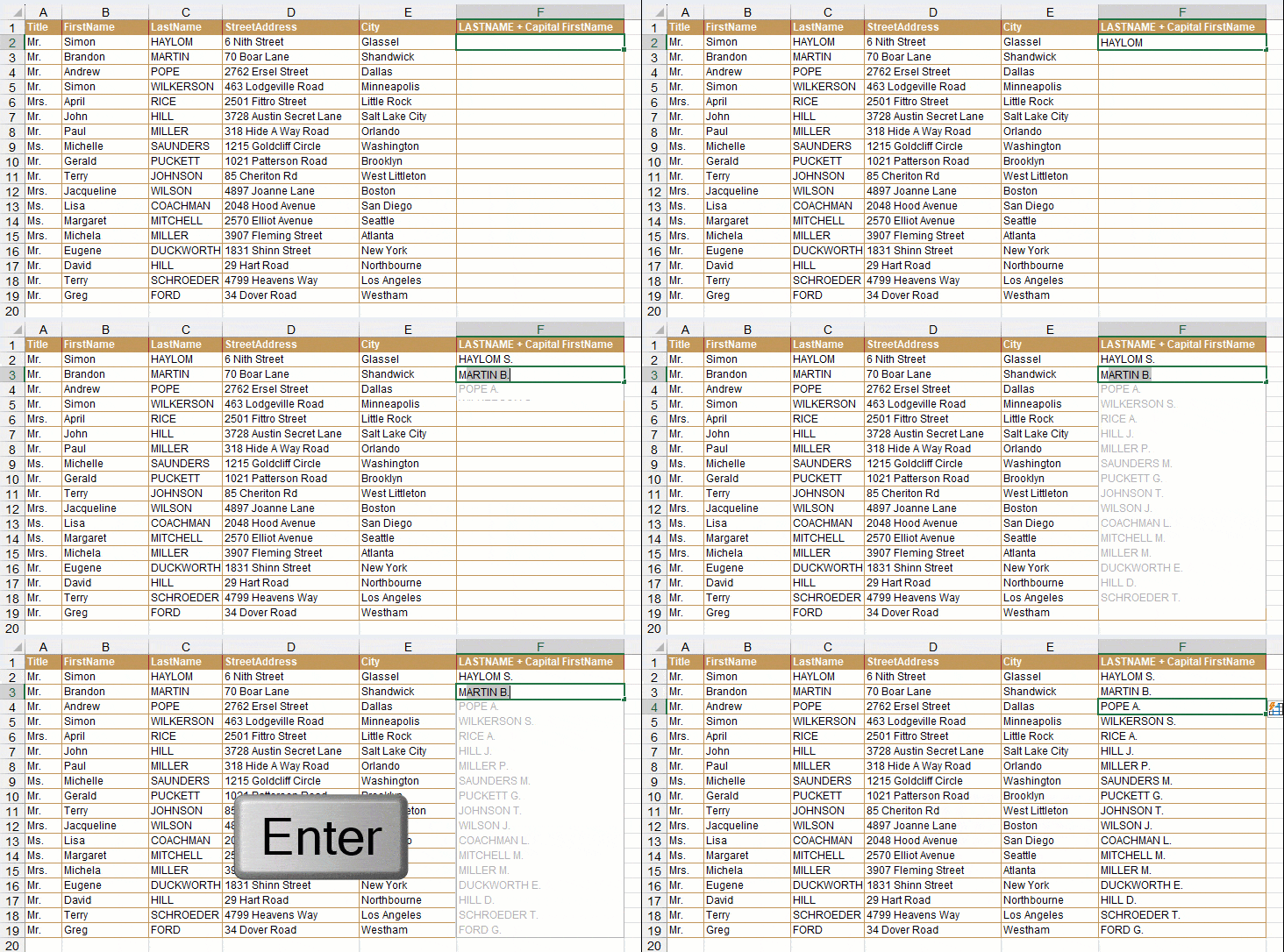
It’s also possible to create even more complex combinations. Here, FlashFill didn’t correctly understand the rule on the first try. By filling in a second cell, we helped it understand the pattern, and then it worked. 😀
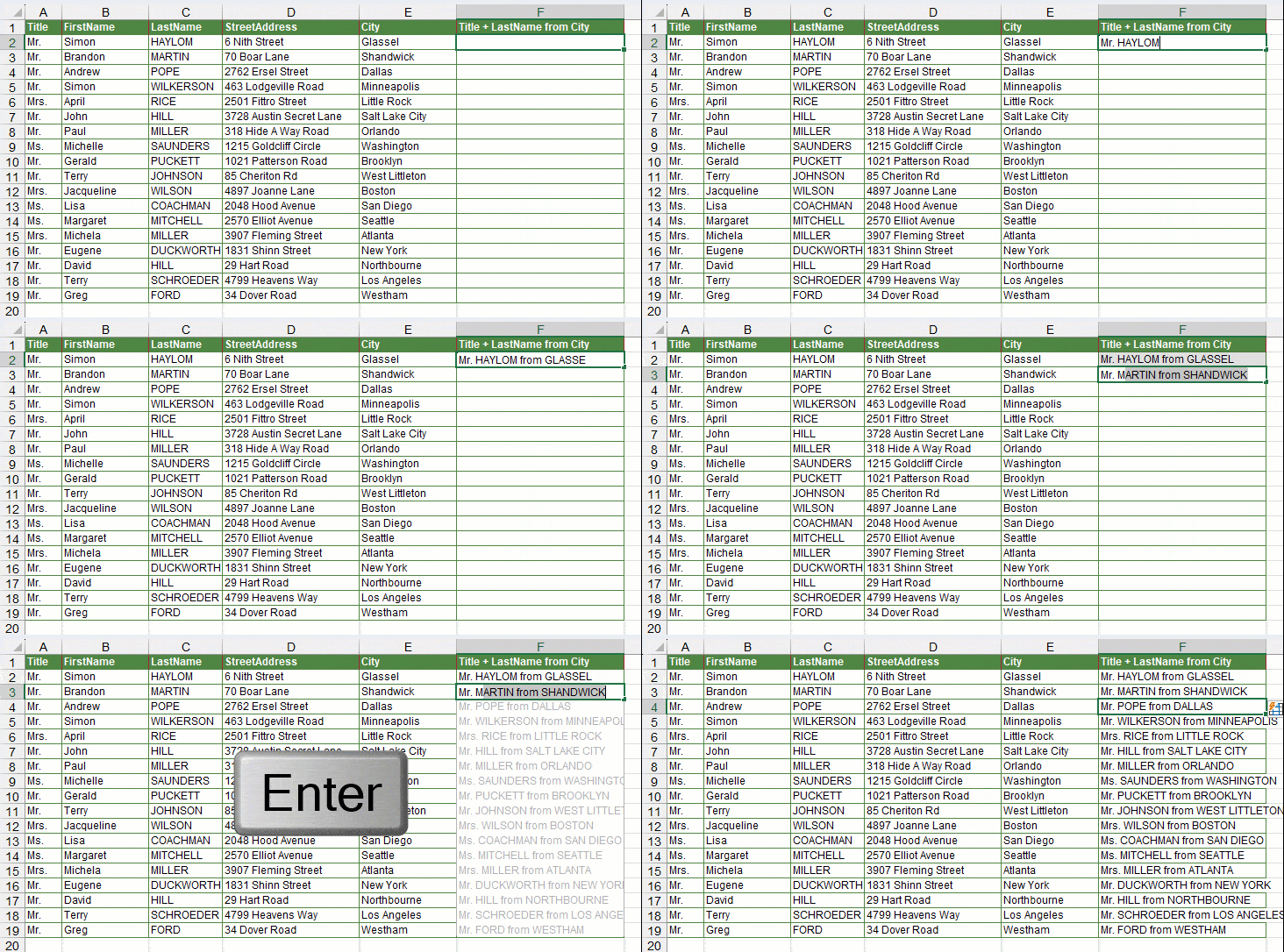
Sometimes, you must fill two, three, or four cells to help FlashFill understand your pattern.
Worked example: does FlashFill update itself if you fix a mistake?
Column F below was generated with FlashFill.

Now imagine you notice a mistake in A9 and B9, so you correct it. Will column F be updated automatically?
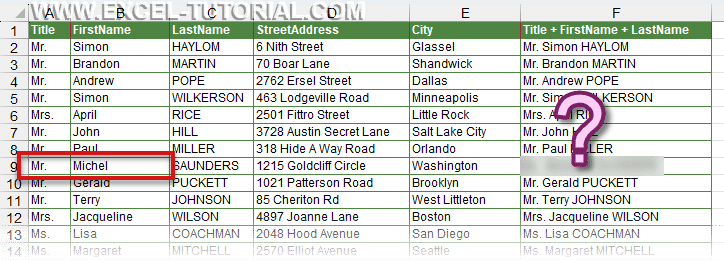
No — FlashFill does not update changes. The transformation is only performed once, at the time of entry. If you change a cell afterward, you must delete the previous result and run FlashFill again.
Extract text with FlashFill
FlashFill is also excellent for extracting specific parts of text, such as substrings of characters.
- We’re going to extract the last name in column D
- And the first name in column E
No worries! Simply specify the desired outcome, and let FlashFill handle the task effortlessly.
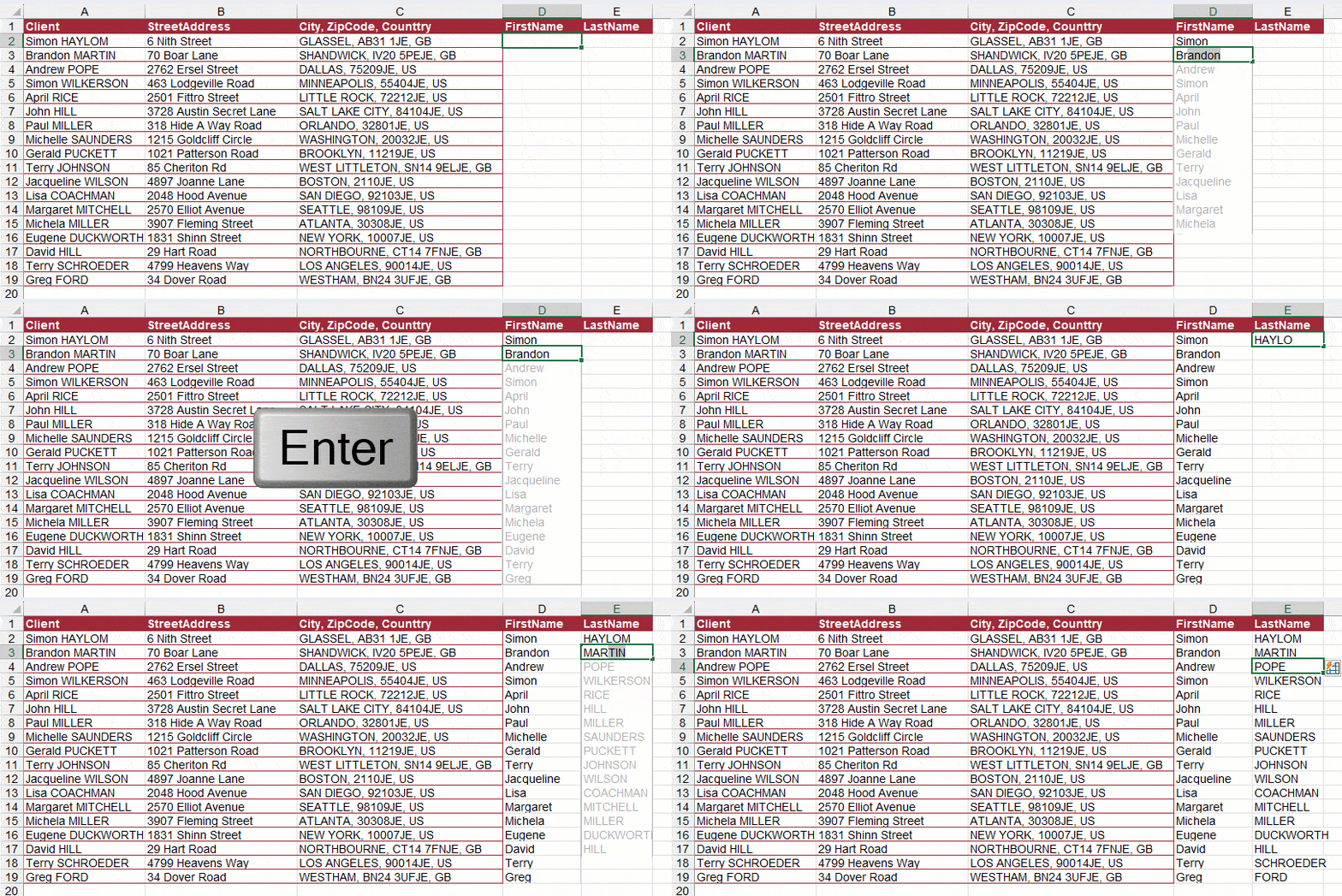
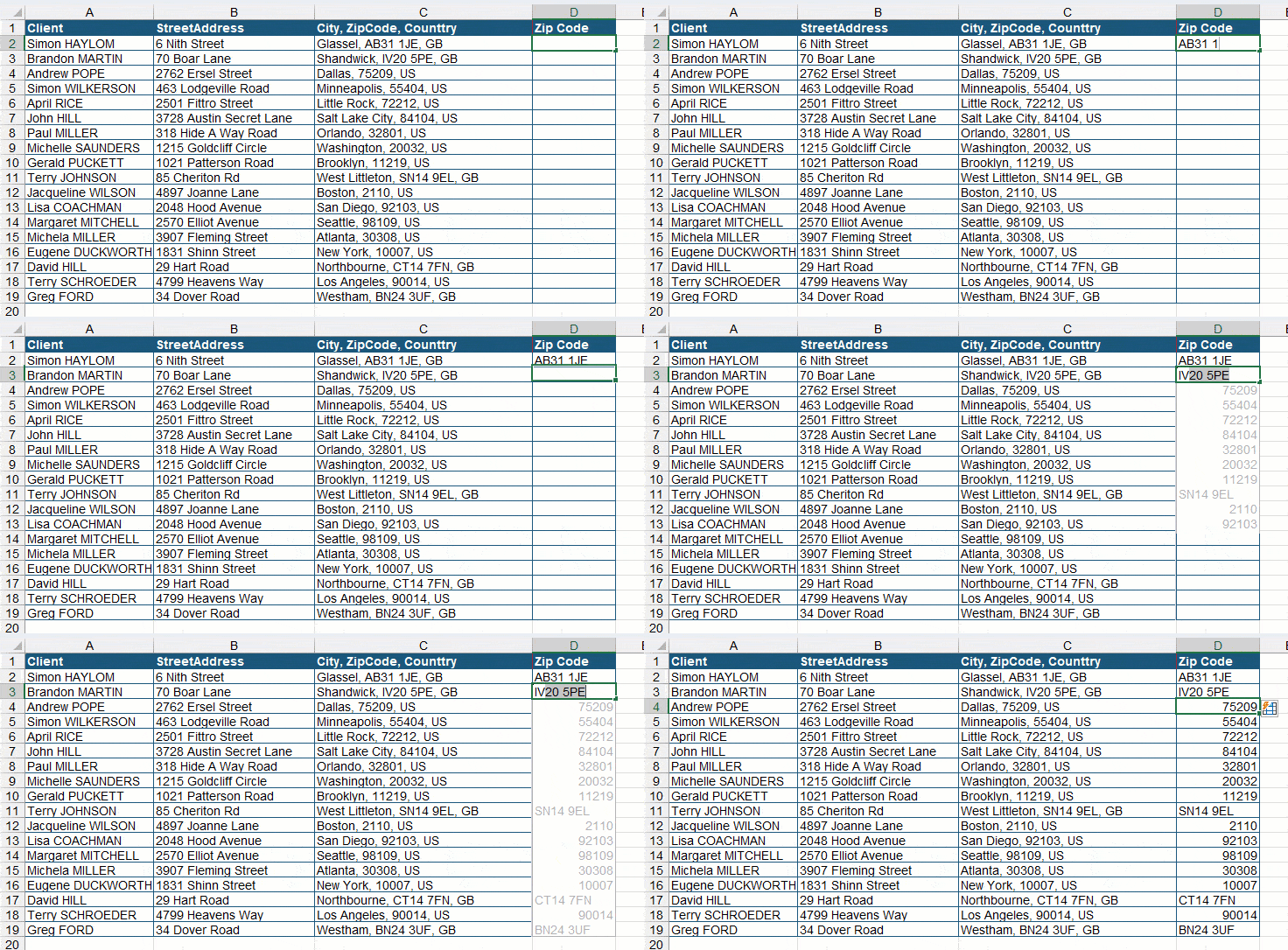
It’s also great for efficiently extracting specific substrings, like zip codes from addresses.
Usage limits
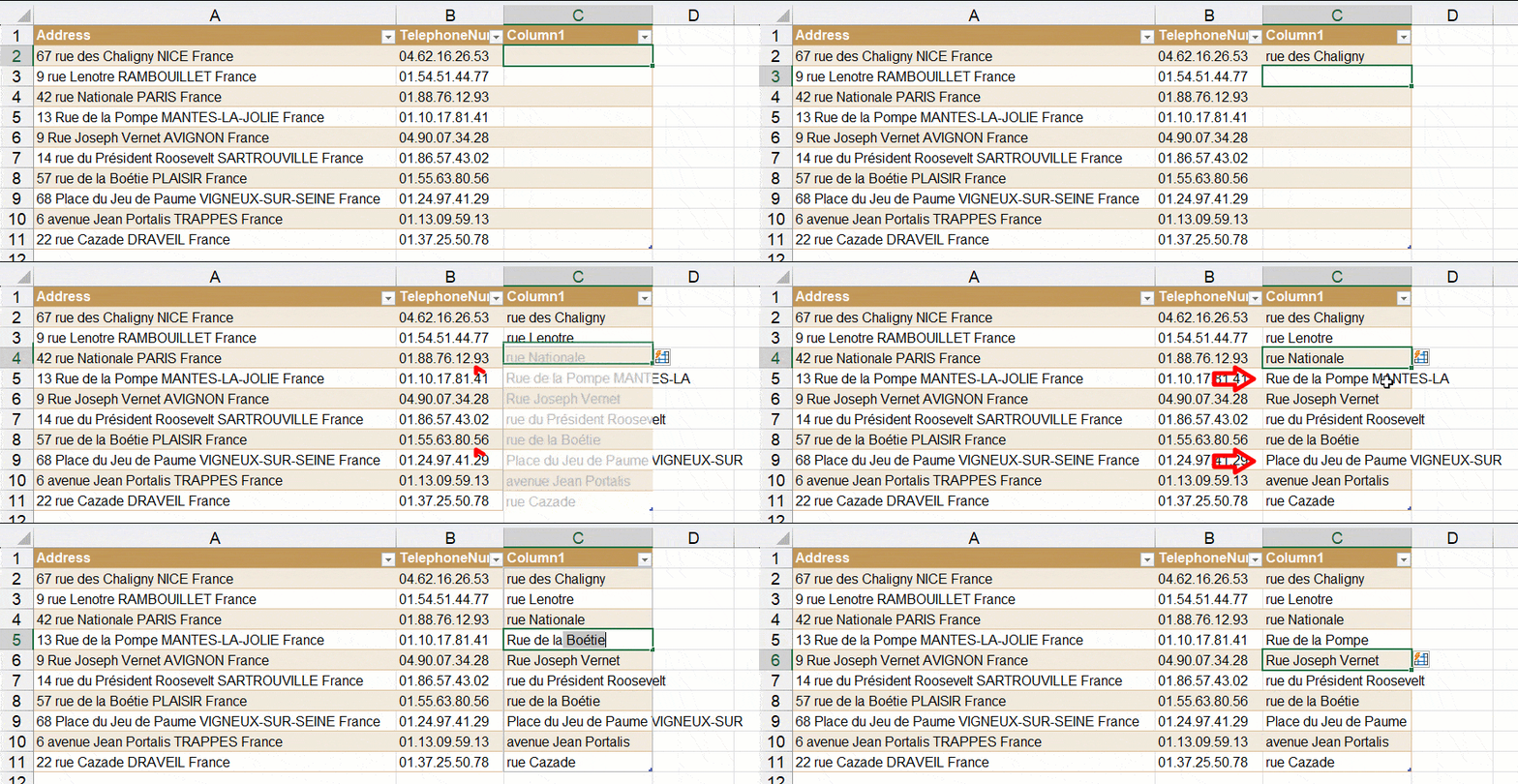
In some situations, FlashFill isn’t able to understand the extraction logic on the first try.
For instance, in this situation:
- The first two extractions return some mistakes
- So we correct one of the mistakes — row 5, for instance
- This helps FlashFill improve the rules for extracting data
- Then, our extraction is perfect
Force FlashFill to return the result
In some situations where FlashFill doesn’t automatically suggest a list, you can “force” the result.
- Extract street numbers, avenue names, etc.
- On the second entry, the list was briefly displayed
- Use the fill handle (the value 70 is copied for all the cells)
- Then click the fill options button
- Choose the Flash Fill option
- The list of house numbers is perfect. 😀👍
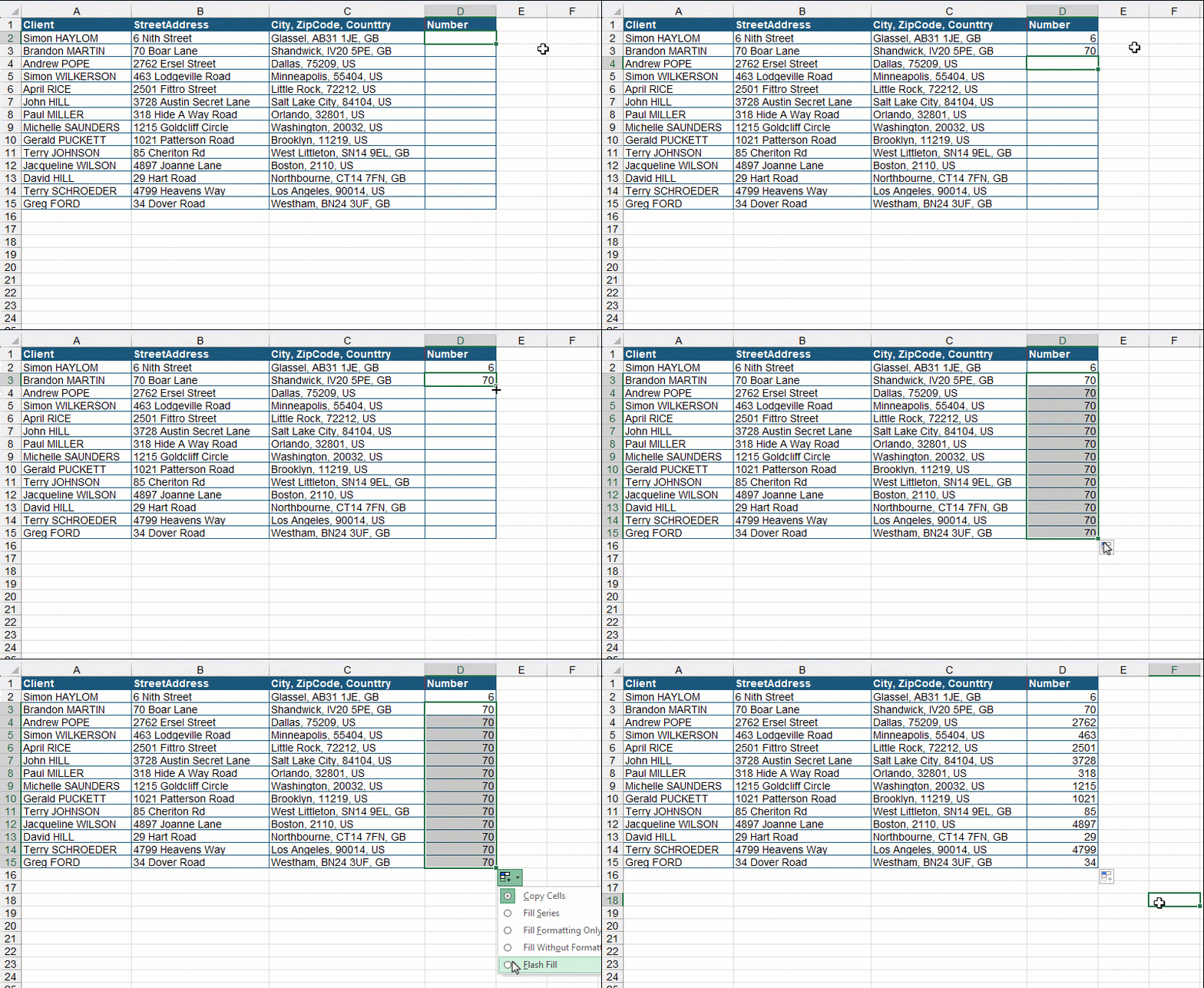
You can get the same result with the keyboard shortcut Ctrl + E.
Using Numbers with FlashFill
FlashFill can also convert some numbers.
For instance, here, we want to put the first three digits of each phone number in parentheses. No problem for FlashFill. 😀👍
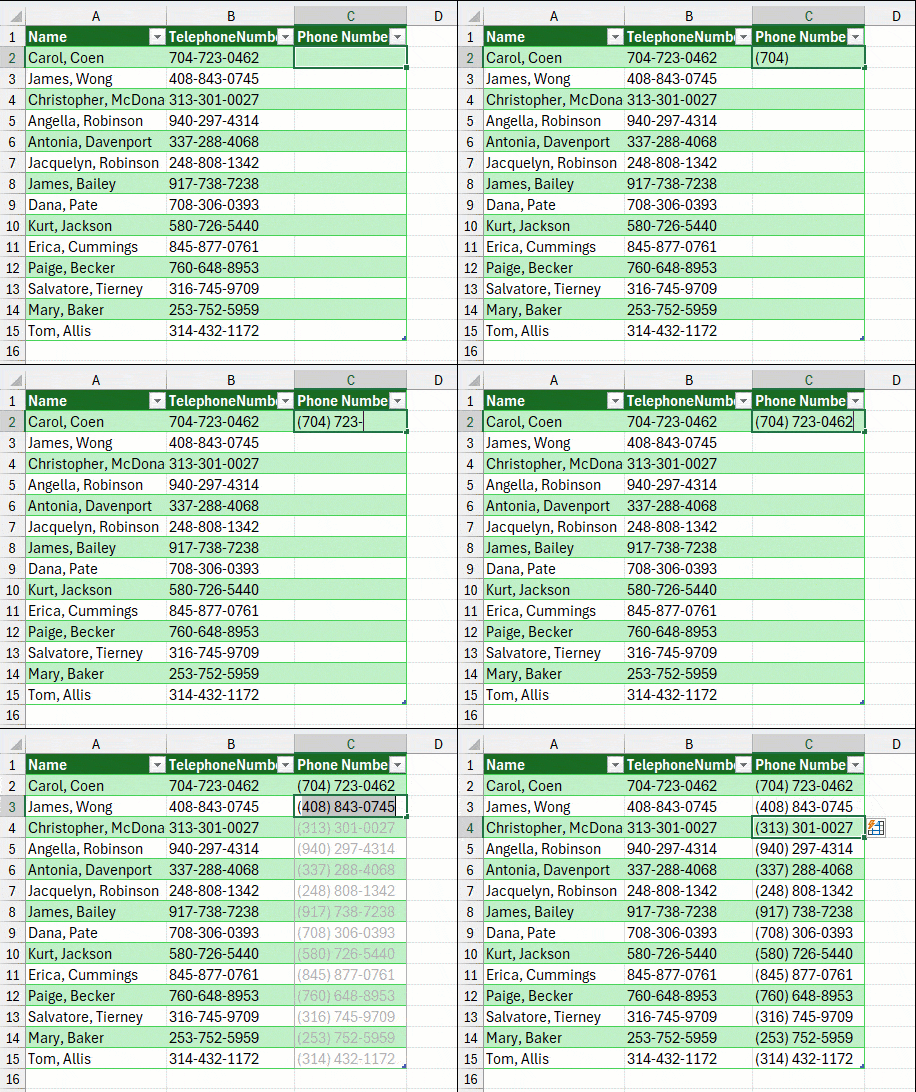
This only works, however, when you treat your numbers as text (a string).
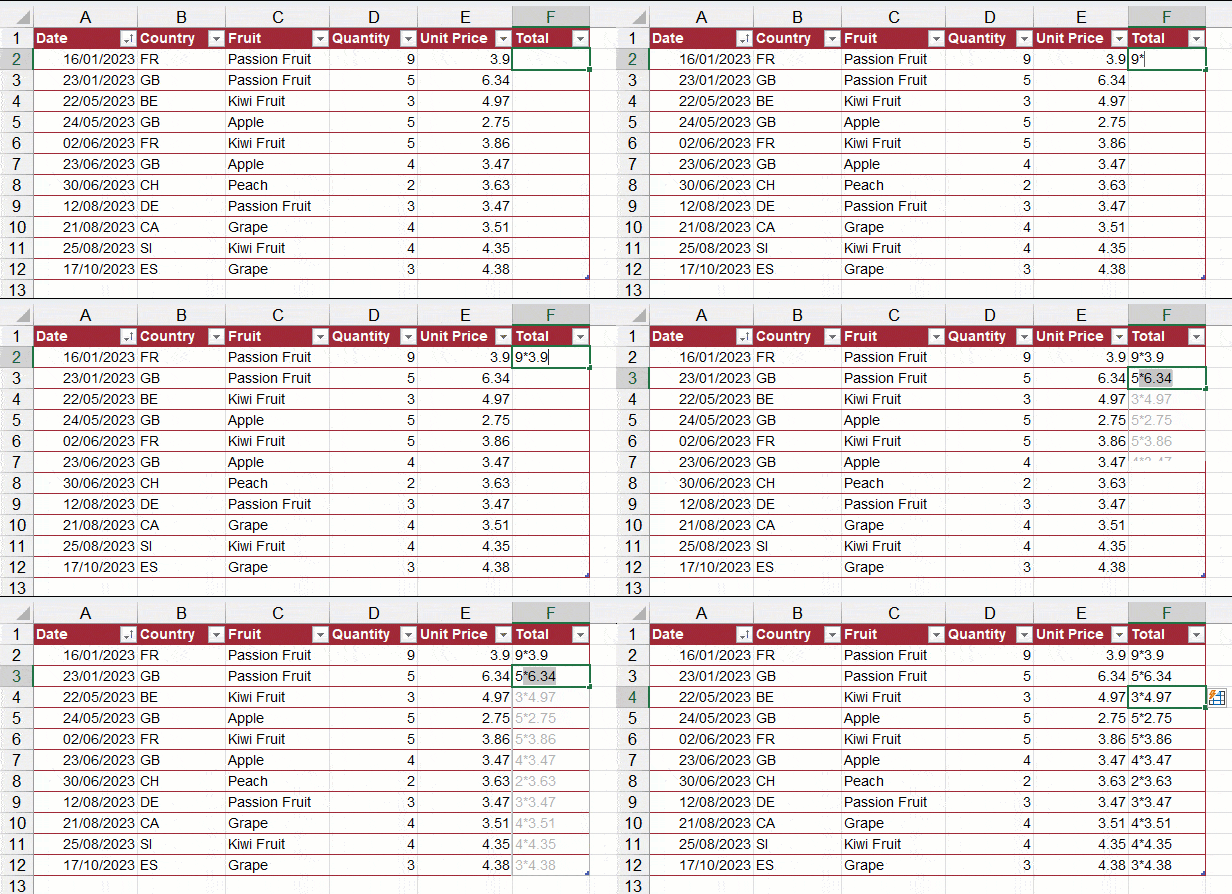
FlashFill cannot be used to perform calculations, as illustrated in this example.
FlashFill with dates
FlashFill cannot be used to process dates and times. For instance, attempting to associate dates and times in Excel using FlashFill results in an error message.

This is because FlashFill is designed for text manipulation — including numbers treated as text, like postal codes or phone numbers.
FlashFill is one of Excel’s most efficient tools for merging, extracting, and reformatting text without writing a single formula — as long as you remember it only works on text patterns entered once, not on live formulas, dates, or calculations.
Continue learning
Keep building your Excel skills with the rest of this tutorial series:
- Tutorial – Excel keywords
- Tutorial – Adjusting the Size of rows and columns
- Tutorial – How to make calculations in Excel
- Tricks to Insert, Delete, Hide Rows and Columns
- Tutorial – All Excel tricks to Copy-Paste
- Tutorial – Moving cells or columns with the mouse
- Tutorial – The Numbers Format
- Tutorial – Excel Alignment text tips
- Learn the secrets of Sorting Data with Excel
- Excel Tutorial – Filtering your data
- Excel Tutorial – Creating a dropdown menu
- Learn how to use the SUM function in Excel
- Tutorial for the Excel Functions AVERAGE, MIN, and MAX
- Learn how to use the Dollars in an Excel formula


