How many values do I have in my range?
This is a question everyone is asking, but there is a trap 🤔😱
The COUNT function
This is the function that comes to mind first, and that makes sense: you’d expect it to return the number of non-empty cells. But look at the result of the following function!
=COUNT(B1:B10)

We have selected 10 cells, but the result shows 9 🤔
- The COUNT function returns the number of cells containing numeric (number or date) values.
- In this example, B1 contains the text ‘Mon’ and is therefore not counted in the result 😉
The COUNTA function
The COUNTA function counts all the cells with numeric values and text, but it doesn’t count empty cells.

It’s crucial to understand that Excel offers two functions for counting cells, each with a different logic and purpose.
Calculate the Average over the week
To calculate the average sales for each seller, you could simply divide the SUM by the number of days (5).

But if you add a column for Saturday, you will have to change the divisor value to avoid an error like this one 😱

It’s better to use the AVERAGE function to avoid this kind of error (which is unfortunately very common).
- The AVERAGE function will both sum the values and divide by the number of selected cells 😉

How do I create an AVERAGE function?
As with the SUM function, there are several ways to create an AVERAGE function:
- Write the function directly in the cell =AVERAGE(
- From the Home tab in the ribbon, click the arrow next to the AutoSum button.

- Or with Quick Analysis, but only if the column next to the selection is the one meant for the result.
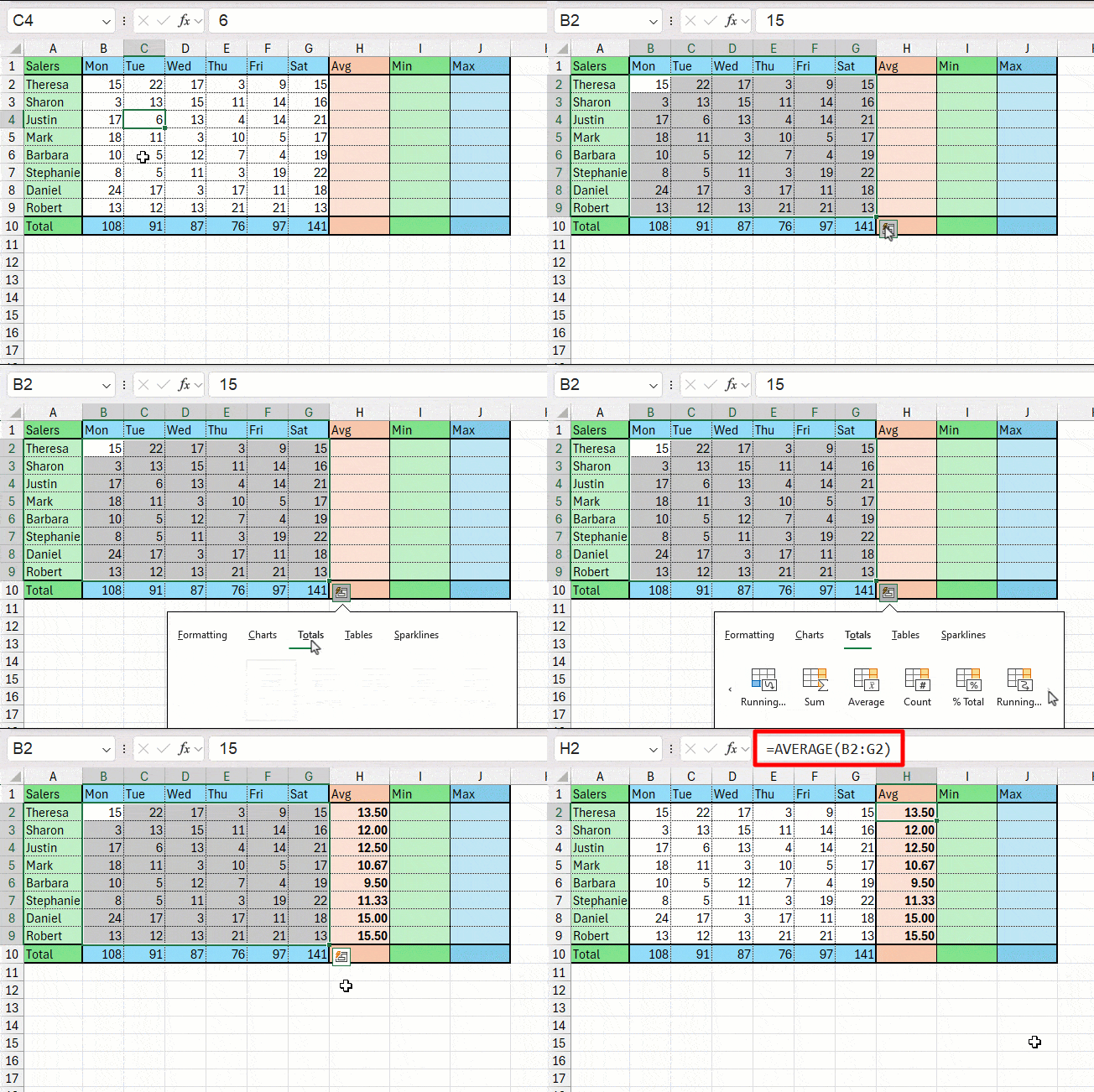
The only difference with the SUM function is that the AVERAGE function cannot be called by a keyboard shortcut.
MIN and MAX
Just as easily as we calculated the count and the average, we can also return the minimum and maximum values of a series.
For example, to find the minimum number of units sold in the week by our first salesperson, write =MIN(B2:F2).

For the maximum, the formula is =MAX(B2:F2).


The trap is to carry over the SUM or AVERAGE reflex out of habit. For the Total row, applying MIN again across the whole week gives the single lowest value found among every day, and applying MAX again gives the single highest value. Summing or averaging the daily minimums and maximums instead would produce a meaningless number.
Now practice it yourself
Time to put COUNT, COUNTA, AVERAGE, MIN and MAX to work on a real case: analyze a week of sales figures and calculate the right statistics for each column and for the week as a whole.
Continue learning
Keep building your Excel skills with the rest of this tutorial series:
- Tutorial – Excel keywords
- Tutorial – Adjusting the Size of rows and columns
- Tutorial – How to make calculations in Excel
- Tricks to Insert, Delete, Hide Rows and Columns
- Tutorial – All Excel tricks to Copy-Paste
- Tutorial – Moving cells or columns with the mouse
- Tutorial – The Numbers Format
- Tutorial – Excel Alignment text tips
- Learn the secrets of Sorting Data with Excel
- Excel Tutorial – Filtering your data
- Manipulate Text in Excel without formula
- Excel Tutorial – Creating a dropdown menu
- Learn how to use the SUM function in Excel
- Learn how to use the Dollars in an Excel formula


