
Sort your data
To make your data easier to read, Excel has a very effective sorting tool in the Data tab.

Consider the following table:

We want to sort this table by Country in ascending order.
- Select one of the cells in the column you want to sort (not necessarily the header)
- Click the A-Z icon to sort in ascending order

Now we want to sort the Total column in descending order.
- Select one of the cells in the Total column
- Select the Data tab
- Click the Z-A icon

Sort across multiple columns
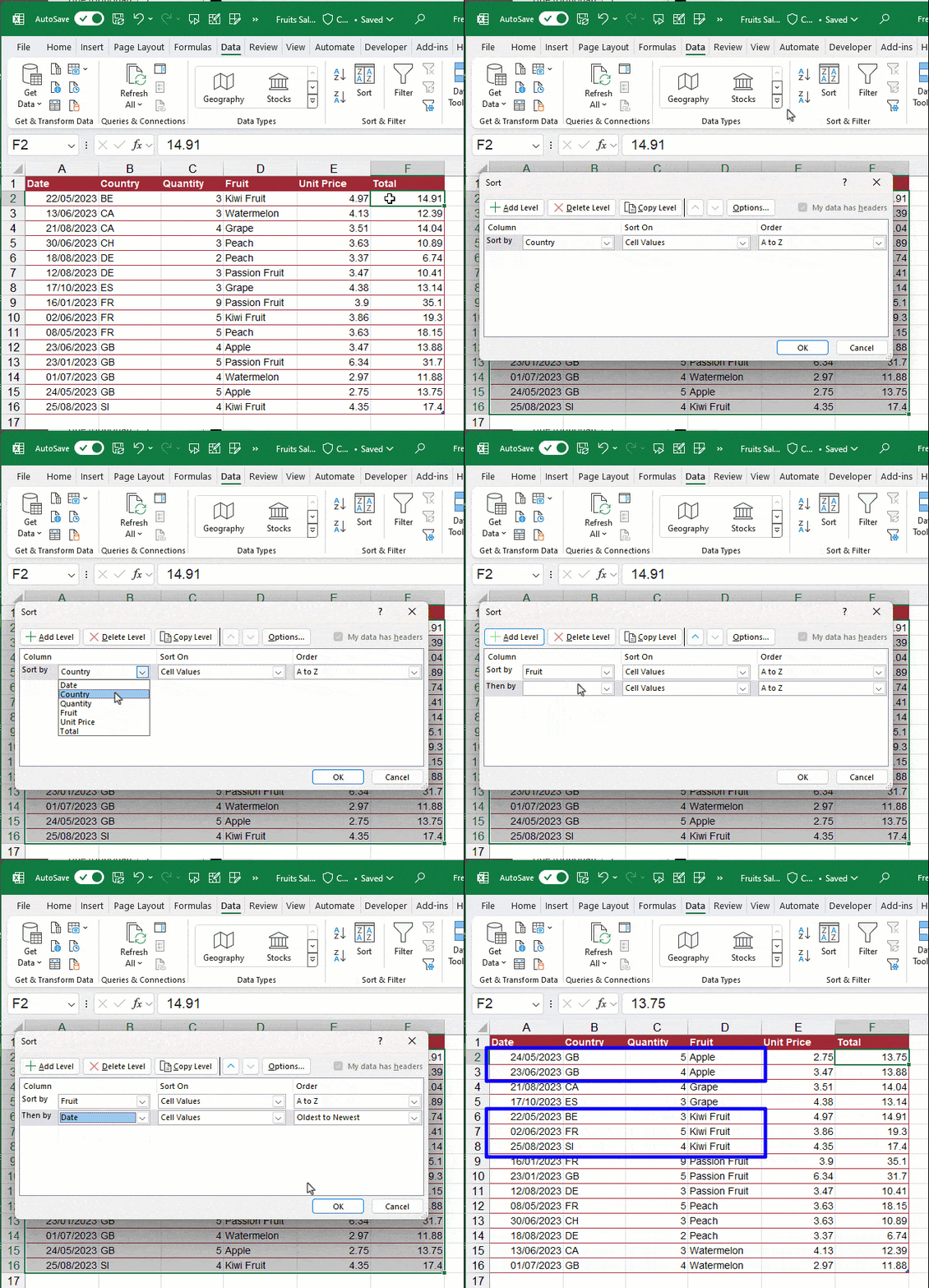
In Excel, you can sort on as many columns as you want, up to a limit of 256. For example, we want to sort the following table by Product and Date.

To sort on two or more columns, open the sorting options dialog box from the ribbon.

To sort on several columns, proceed as follows:
- Check that the Header option is checked
- Specify the first sort column: Fruit
- Click the Add Level button
- Specify the second sort key: Date
Sort on colors
In Excel, it's common to highlight cells with colors that matter to you. Using the sorting tool, you can then sort columns by color.
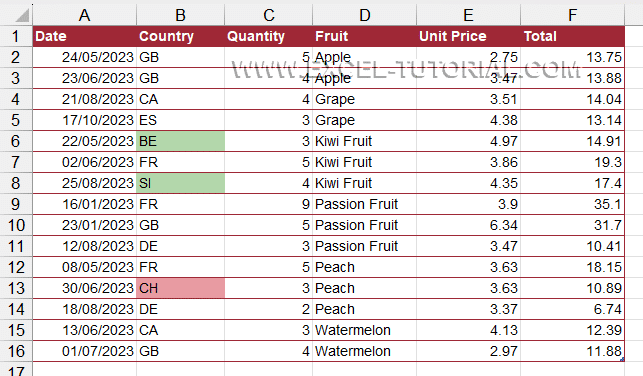
- From the sort dialog box, you can specify that you want to sort on a color

- Then you'll choose one color. The dialog box shows you all the colors used in the column.

- Add a new Level
- Repeat the same steps for another color

The result is as follows. Note that only colors are sorted and not column values.
To sort on two colors in the same column, you need to create a sort key on that same column.
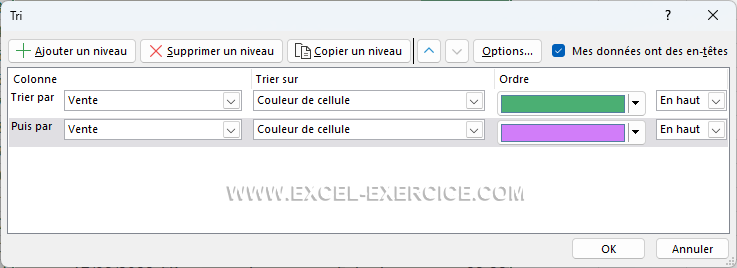
This gives the following result:

Spot the sort option
Look at the result below. As we saw above, sorting by color only reorders the colors themselves — it doesn't touch the other column values. Can you tell which sort option produced this result?

Sort with column header arrows
There is another way to sort your data: using the options in Filter (next section).
To add the sort or filter arrows to your column headers, you can either:
- Use the key combination Ctrl + Shift + L
- Click the Data icon > Filter
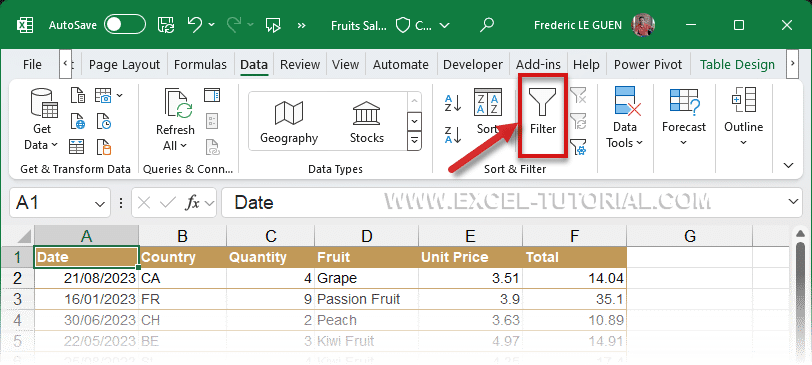
This adds arrows to each column header.

Click the arrow on one of the headers to find the same sorting options we saw earlier (ascending order, descending order, and sorting by color).

CAUTION: sorting on several columns from the arrows is impossible. Only one column can be sorted.
Wrap-up
You now have the full sorting toolkit in Excel: quick ascending/descending sorts, multi-column sorting with the dialog box, sorting by color, and the fast (but single-column) header arrows.
Continue learning
Keep building your Excel skills with the rest of this tutorial series:
- Tutorial - Excel keywords
- Tutorial - Adjusting the Size of rows and columns
- Tutorial - How to make calculations in Excel
- Tricks to Insert, Delete, Hide Rows and Columns
- Tutorial - All Excel tricks to Copy-Paste
- Tutorial - Moving cells or columns with the mouse
- Tutorial - The Numbers Format
- Tutorial - Excel Alignment text tips
- Excel Tutorial - Filtering your data
- Manipulate Text in Excel without formula
- Excel Tutorial - Creating a dropdown menu
- Learn how to use the SUM function in Excel
- Tutorial for the Excel Functions AVERAGE, MIN, and MAX
- Learn how to use the Dollars in an Excel formula