Excel Tutorial
Excel tutorials, quizzes & AI guides — all levels
RSS
  • Online Excel Exercises
  • Training
  • Excel Tests
  • Sitemap
  • Premium Quizzes
  • Shop
  • My account

Excel Tutorial – Creating a dropdown menu

Excel Tutorial
Reading time: 3 minutes
Views: 7,444

Turn on Data Validation

To create a dropdown menu in Excel:

  1. Select one of the cells in your worksheet (for example, A1).
  2. Open the Data tab.
  3. Then click Data validation.
Answer Data Validation

Choosing validation criteria

In the dialog box that opens, you have a dropdown menu with many options.

Data validation options

For instance:

  1. Select the Whole number option.
  2. Then, fill in a range of values between the Min and Max fields.
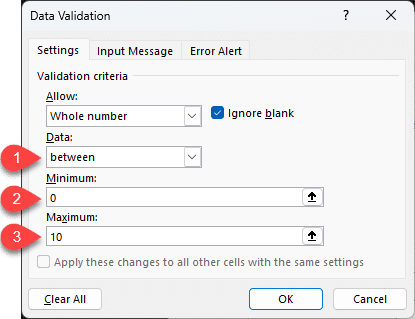
Data validation whole number between
  1. Press OK.
  2. Go back to cell A1.
  3. If you don’t enter a whole number between 0 and 10, you will see the following message (here, the value entered isn’t a whole number).
Error message if the value is not a whole number between 0 and 10

The error message can be customized from the Error Alert tab in the data validation dialog box.

Customize Error message

This last option is useful because you can display informative messages without blocking input.

Change the style of the button in the Error Alert Tab

How to create a dropdown menu

As you can see, the Data validation menu controls what can be entered in a cell. A dropdown menu is based on the same principle: offering a limited choice of values.

  1. Open the Data > Data validation dialog box.
  2. Select the List option.
  3. Then go to the Source text box.
Create a dropdown menu

There, you have two options:

  • You can type the values directly, separated by commas.
Add value manually in the dropdown menu
  • Or specify the data range that contains the values for the dropdown menu.
Use data range as a source for a dropdown menu

The result in your spreadsheet

Whatever method you choose (manual entry or a data range), the result is the same. The cell where you applied data validation displays a dropdown menu with the expected values listed:

  • Display Yes / No
DropDown menu with Manual entry
  • And for the data range
DropDown list from a data range

The dropdown menu doesn’t contain duplicates. This feature is exclusive to Excel 365.

How to delete a dropdown menu?

To delete a dropdown menu:

  1. Select the cell with the dropdown menu.
  2. Open the Data > Data validation dialog box.
  3. Click the Clear All button.
How to delete a dropdown menu

Finding a dropdown menu

The problem with cells that contain a dropdown menu is that the arrow only appears when the cell is active.

How to find the dropdown menus in your worksheet

To find them, go to the menu:

  1. Home
  2. Edit
  3. Find & Select
  4. Data Validation
Menu to find the dropdown menus

Excel then moves to the cell or cells containing the dropdown menus.

Find the dropdown menus in the worksheets

Continue learning

Keep building your Excel skills with the rest of this tutorial series:

  • Tutorial – Excel keywords
  • Tutorial – Adjusting the Size of rows and columns
  • Tutorial – How to make calculations in Excel
  • Tricks to Insert, Delete, Hide Rows and Columns
  • Tutorial – All Excel tricks to Copy-Paste
  • Tutorial – Moving cells or columns with the mouse
  • Tutorial – The Numbers Format
  • Tutorial – Excel Alignment text tips
  • Learn the secrets of Sorting Data with Excel
  • Excel Tutorial – Filtering your data
  • Manipulate Text in Excel without formula
  • Learn how to use the SUM function in Excel
  • Tutorial for the Excel Functions AVERAGE, MIN, and MAX
  • Learn how to use the Dollars in an Excel formula

Frédéric LE GUEN

dropdown list, training, tutorial

Leave a Reply Cancel reply

Your email address will not be published. Required fields are marked *

Most Viewed Posts

  • Displaying Negative Numbers in Parentheses in Excel (310,065)
  • Top 10 Excel Functions You Must Know (232,001)
  • How to make automatic calendar in Excel (212,775)
  • Dash for a zero in Excel automatically (190,813)
  • Converting a Date from YYYYMMDD to DD/MM/YYYY in Excel (171,034)
image excel exercises
Excel Exercises
image excel quizzes
Excel Quizzes

Excel Tutorial – Creating a dropdown menu

Reading time: 3 minutes
Views: 7,444

Turn on Data Validation

To create a dropdown menu in Excel:

  1. Select one of the cells in your worksheet (for example, A1).
  2. Open the Data tab.
  3. Then click Data validation.
Answer Data Validation

Choosing validation criteria

In the dialog box that opens, you have a dropdown menu with many options.

Data validation options

For instance:

  1. Select the Whole number option.
  2. Then, fill in a range of values between the Min and Max fields.
Data validation whole number between
  1. Press OK.
  2. Go back to cell A1.
  3. If you don’t enter a whole number between 0 and 10, you will see the following message (here, the value entered isn’t a whole number).
Error message if the value is not a whole number between 0 and 10

The error message can be customized from the Error Alert tab in the data validation dialog box.

Customize Error message

This last option is useful because you can display informative messages without blocking input.

Change the style of the button in the Error Alert Tab

How to create a dropdown menu

As you can see, the Data validation menu controls what can be entered in a cell. A dropdown menu is based on the same principle: offering a limited choice of values.

  1. Open the Data > Data validation dialog box.
  2. Select the List option.
  3. Then go to the Source text box.
Create a dropdown menu

There, you have two options:

  • You can type the values directly, separated by commas.
Add value manually in the dropdown menu
  • Or specify the data range that contains the values for the dropdown menu.
Use data range as a source for a dropdown menu

The result in your spreadsheet

Whatever method you choose (manual entry or a data range), the result is the same. The cell where you applied data validation displays a dropdown menu with the expected values listed:

  • Display Yes / No
DropDown menu with Manual entry
  • And for the data range
DropDown list from a data range

The dropdown menu doesn’t contain duplicates. This feature is exclusive to Excel 365.

How to delete a dropdown menu?

To delete a dropdown menu:

  1. Select the cell with the dropdown menu.
  2. Open the Data > Data validation dialog box.
  3. Click the Clear All button.
How to delete a dropdown menu

Finding a dropdown menu

The problem with cells that contain a dropdown menu is that the arrow only appears when the cell is active.

How to find the dropdown menus in your worksheet

To find them, go to the menu:

  1. Home
  2. Edit
  3. Find & Select
  4. Data Validation
Menu to find the dropdown menus

Excel then moves to the cell or cells containing the dropdown menus.

Find the dropdown menus in the worksheets

Continue learning

Keep building your Excel skills with the rest of this tutorial series:

  • Tutorial – Excel keywords
  • Tutorial – Adjusting the Size of rows and columns
  • Tutorial – How to make calculations in Excel
  • Tricks to Insert, Delete, Hide Rows and Columns
  • Tutorial – All Excel tricks to Copy-Paste
  • Tutorial – Moving cells or columns with the mouse
  • Tutorial – The Numbers Format
  • Tutorial – Excel Alignment text tips
  • Learn the secrets of Sorting Data with Excel
  • Excel Tutorial – Filtering your data
  • Manipulate Text in Excel without formula
  • Learn how to use the SUM function in Excel
  • Tutorial for the Excel Functions AVERAGE, MIN, and MAX
  • Learn how to use the Dollars in an Excel formula
Tags: dropdown listtrainingtutorial

Frédéric LE GUEN

Leave a Reply Cancel reply

Your email address will not be published. Required fields are marked *

Contact us
About me 
Privacy Policy

© 2022 – 2026 – excel-tutorial.com. All Rights Reserved.
Excel Tutorial is managed by majordome du net

Contact us
About me 
Privacy Policy

© 2022 – 2026 – excel-tutorial.com. All Rights Reserved.
Excel Tutorial is managed by majordome du net