Excel Tutorial
Excel tutorials, quizzes & AI guides — all levels
RSS
  • Online Excel Exercises
  • Training
  • Excel Tests
  • Sitemap
  • Premium Quizzes
  • Shop
  • My account

Tutorial – Excel keywords

Excel Tutorial - Free Excel Tutorial for beginners
Reading time: 3 minutes
Views: 13,075

Before you can build your first Excel formula, you need to know the basic vocabulary: what’s a cell, a workbook, a worksheet, or the fill handle? This tutorial walks you through the essential Excel terms you’ll see again and again throughout this series.

The Excel working environment

When Excel opens, you will see the following elements displayed on the screen:

  1. The worksheet, or the grid
  2. Each intersection of a row and a column is a cell
  3. The cell with the thick border is the active cell. This is where you’ll write text, a number, or a formula.
  4. The letters A, B, C… are the column headers.
  5. To move around a spreadsheet, you can use the horizontal and vertical scrollbars.
  6. A zoom function is available to enlarge or reduce the display of the spreadsheet.
The Excel worksheet

The highlighted rectangle in the screenshot above is a cell — the basic building block of any worksheet.

Above the grid, you’ll find these items:

  1. The formula bar. Here, you can see whether a cell contains a value, a date, or a formula.
  2. The Ribbon. This is where you’ll find all the tools you need to work in Excel.
  3. Tabs, or menus. Above the ribbon sit different task categories. Selecting one changes the icons and tools shown in the ribbon.
  4. The Name Box. It shows the reference of the active cell — or its custom name, if you’ve given it one.
  5. The Quick Access Toolbar. Pin your favorite commands here to save time — no more hunting through menus.
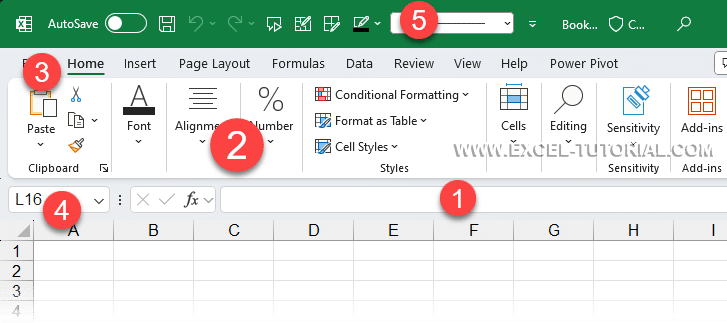
The keywords of Excel application

whether a cell contains a value, a date, or a formula.

Other essential Excel terms

A few more essential words will come up throughout this series.

  • The square at the bottom right of the active cell is called the fill handle.
Option Fill Handle in a cell
  • Selecting several cells at once creates what’s called a range of cells.
Range of cells in Excel
  • An Excel file is called a workbook.
  • A workbook can contain one or several worksheets (also called tabs).
Excel worksheets

Text or number?

One reason Excel is so powerful is that a single cell can hold almost any type of data:

  • Text
  • A number
  • A date
  • A logical test (TRUE or FALSE)
  • And even images
Example Data Type in Excel

Knowing which data type you’re dealing with matters — text, for example, can’t be used in a calculation.

Tips to recognize the data type of a cell

  • Text is always on the left of a cell (B1, B2, B3, B4, B5, B6, B7, C1, C2)
  • A number or date is always positioned to the right of a cell (C3, C4, C5)
  • Less importantly, a logical test (TRUE or FALSE) is always in the center of a cell (C6)

Quiz

121

You have 10 minutes to complete this quiz

No more time to complete the quiz


1 / 10

What is the name of the textbox where you write your formulas?

2 / 10

What name is given to the coordinates of a cell, like here B2? 2 answers are possible.

3 / 10

Sometimes, Excel opens extra options on the right side of the applications. What is the name of this area?

4 / 10

What is the name of this area?

5 / 10

What sign always starts a formula or a calculation in Excel?

6 / 10

What is the square's name at the bottom-right of the active cell?

7 / 10

What is the name given to the cell selected?

8 / 10

What is the name given to a multi cells selection?

9 / 10

What is the name of the bar with all the icons?

10 / 10

What is the name of each area in a worksheet? Where you insert text or numbers.

Your score is

The average score is 63%

Share your score with your network

LinkedInFacebook

Continue learning

Keep building your Excel skills with the rest of this tutorial series:

  • Tutorial – Adjusting the Size of rows and columns
  • Tutorial – How to make calculations in Excel
  • Tricks to Insert, Delete, Hide Rows and Columns
  • Tutorial – All Excel tricks to Copy-Paste
  • Tutorial – Moving cells or columns with the mouse
  • Tutorial – The Numbers Format
  • Tutorial – Excel Alignment text tips
  • Learn the secrets of Sorting Data with Excel
  • Excel Tutorial – Filtering your data
  • Manipulate Text in Excel without formula
  • Excel Tutorial – Creating a dropdown menu
  • Learn how to use the SUM function in Excel
  • Tutorial for the Excel Functions AVERAGE, MIN, and MAX
  • Learn how to use the Dollars in an Excel formula

Frédéric LE GUEN

beginner, excel beginner, tutorial

Leave a Reply Cancel reply

Your email address will not be published. Required fields are marked *

Most Viewed Posts

  • Displaying Negative Numbers in Parentheses in Excel (310,065)
  • Top 10 Excel Functions You Must Know (232,001)
  • How to make automatic calendar in Excel (212,775)
  • Dash for a zero in Excel automatically (190,813)
  • Converting a Date from YYYYMMDD to DD/MM/YYYY in Excel (171,034)
image excel exercises
Excel Exercises
image excel quizzes
Excel Quizzes

Tutorial – Excel keywords

Reading time: 3 minutes
Views: 13,075

Before you can build your first Excel formula, you need to know the basic vocabulary: what’s a cell, a workbook, a worksheet, or the fill handle? This tutorial walks you through the essential Excel terms you’ll see again and again throughout this series.

The Excel working environment

When Excel opens, you will see the following elements displayed on the screen:

  1. The worksheet, or the grid
  2. Each intersection of a row and a column is a cell
  3. The cell with the thick border is the active cell. This is where you’ll write text, a number, or a formula.
  4. The letters A, B, C… are the column headers.
  5. To move around a spreadsheet, you can use the horizontal and vertical scrollbars.
  6. A zoom function is available to enlarge or reduce the display of the spreadsheet.
The Excel worksheet

The highlighted rectangle in the screenshot above is a cell — the basic building block of any worksheet.

Above the grid, you’ll find these items:

  1. The formula bar. Here, you can see whether a cell contains a value, a date, or a formula.
  2. The Ribbon. This is where you’ll find all the tools you need to work in Excel.
  3. Tabs, or menus. Above the ribbon sit different task categories. Selecting one changes the icons and tools shown in the ribbon.
  4. The Name Box. It shows the reference of the active cell — or its custom name, if you’ve given it one.
  5. The Quick Access Toolbar. Pin your favorite commands here to save time — no more hunting through menus.
The keywords of Excel application

whether a cell contains a value, a date, or a formula.

Other essential Excel terms

A few more essential words will come up throughout this series.

  • The square at the bottom right of the active cell is called the fill handle.
Option Fill Handle in a cell
  • Selecting several cells at once creates what’s called a range of cells.
Range of cells in Excel
  • An Excel file is called a workbook.
  • A workbook can contain one or several worksheets (also called tabs).
Excel worksheets

Text or number?

One reason Excel is so powerful is that a single cell can hold almost any type of data:

  • Text
  • A number
  • A date
  • A logical test (TRUE or FALSE)
  • And even images
Example Data Type in Excel

Knowing which data type you’re dealing with matters — text, for example, can’t be used in a calculation.

Tips to recognize the data type of a cell

  • Text is always on the left of a cell (B1, B2, B3, B4, B5, B6, B7, C1, C2)
  • A number or date is always positioned to the right of a cell (C3, C4, C5)
  • Less importantly, a logical test (TRUE or FALSE) is always in the center of a cell (C6)

Quiz

121

You have 10 minutes to complete this quiz

No more time to complete the quiz


1 / 10

What is the name of this area?

2 / 10

What is the name of the bar with all the icons?

3 / 10

What is the name given to a multi cells selection?

4 / 10

Sometimes, Excel opens extra options on the right side of the applications. What is the name of this area?

5 / 10

What is the square's name at the bottom-right of the active cell?

6 / 10

What is the name given to the cell selected?

7 / 10

What sign always starts a formula or a calculation in Excel?

8 / 10

What is the name of each area in a worksheet? Where you insert text or numbers.

9 / 10

What is the name of the textbox where you write your formulas?

10 / 10

What name is given to the coordinates of a cell, like here B2? 2 answers are possible.

Your score is

The average score is 63%

Share your score with your network

LinkedInFacebook

Continue learning

Keep building your Excel skills with the rest of this tutorial series:

  • Tutorial – Adjusting the Size of rows and columns
  • Tutorial – How to make calculations in Excel
  • Tricks to Insert, Delete, Hide Rows and Columns
  • Tutorial – All Excel tricks to Copy-Paste
  • Tutorial – Moving cells or columns with the mouse
  • Tutorial – The Numbers Format
  • Tutorial – Excel Alignment text tips
  • Learn the secrets of Sorting Data with Excel
  • Excel Tutorial – Filtering your data
  • Manipulate Text in Excel without formula
  • Excel Tutorial – Creating a dropdown menu
  • Learn how to use the SUM function in Excel
  • Tutorial for the Excel Functions AVERAGE, MIN, and MAX
  • Learn how to use the Dollars in an Excel formula
Tags: beginnerexcel beginnertutorial

Frédéric LE GUEN

Leave a Reply Cancel reply

Your email address will not be published. Required fields are marked *

Contact us
About me 
Privacy Policy

© 2022 – 2026 – excel-tutorial.com. All Rights Reserved.
Excel Tutorial is managed by majordome du net

Contact us
About me 
Privacy Policy

© 2022 – 2026 – excel-tutorial.com. All Rights Reserved.
Excel Tutorial is managed by majordome du net