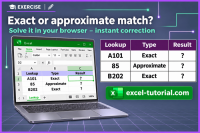
Excel exercise to calculate shipping costs with VLOOKUP: choose between exact and approximate lookup. Instant correction.
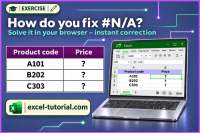
How to fix #N/A errors in VLOOKUP: repair six broken formulas, one mistake at a time. Instant correction.
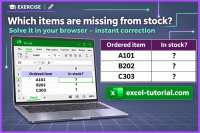
Excel exercise to compare two lists with VLOOKUP and IFERROR: stock versus orders, in both directions. Instant correction.
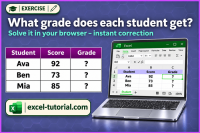
Excel exercise to assign grades with an approximate VLOOKUP, and see why the grading scale must be sorted. Instant correction.
Excel VLOOKUP exercise: find the name, category and price of a product from its reference. Free exercise with instant correction.
Find out how to compare columns in Excel and identify missing values or return only missing values with efficient formulas.
Get a comprehensive understanding of the VLOOKUP function in Excel. Learn how to perform efficient searches in your tables.
Discover why the VLOOKUP function returns an #N/A error in Excel. Learn the common causes and how to quickly fix VLOOKUP errors.
Explore advanced Excel techniques to overcome VLOOKUP limitations and retrieve data from the left with XLOOKUP or INDEX/MATCH.
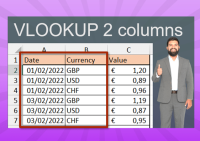
Master the technique of searching in 2 columns in Excel. Say goodbye to the limitations of VLOOKUP and discover the power of XLOOKUP.
Discover a better way to find a value between two values in Excel. Learn how VLOOKUP and XLOOKUP functions can simplify your search.
Learn how the XLOOKUP function in Excel 365 simplifies data lookup in tables. Find out how it improves VLOOKUP and handles errors better.
Learn how to create a dynamic VLOOKUP with the MATCH function and customize your search criteria to return accurate results in Excel.
Learn how to use the INDEX function in Excel. Step-by-step guide for beginners and experts to improve your data analysis skills.
When you have many times the same ID in your table, the following formula will help you to create a lookup offset.
The MATCH function returns the position of an item in a list. This function is very useful to create DYNAMIC dashboard and formulas
Discover how you can transform your worksheet to anonymise your data in the case you have sensitive data. 5 steps are needed