CONCAT vs CONCATENATE in Excel: What Actually Changed

Reading time: 2 minutes

If you learned Excel a few years ago, you joined text with CONCATENATE. Microsoft has replaced it with CONCAT — and the difference is not cosmetic.

The real difference: ranges

CONCATENATE only accepts values listed one by one:

=CONCATENATE(A2,B2,C2,D2)

Write =CONCATENATE(A2:D2) and it does not do what you expect. CONCAT does:

=CONCAT(A2:D2)

Four columns in twelve characters. On twenty columns the gap stops being a detail: one formula against twenty arguments, each of which can be mistyped.
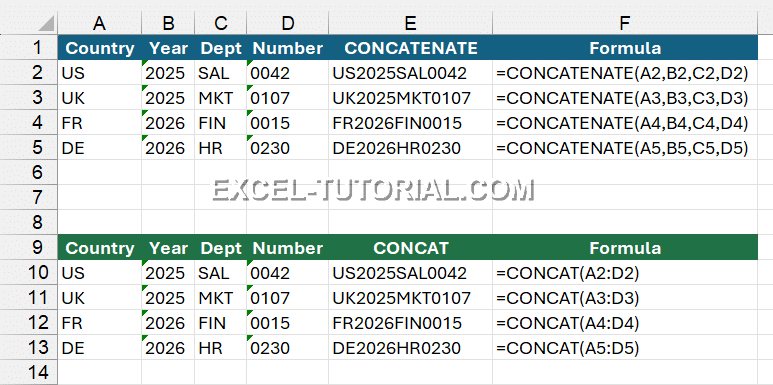
CONCATENATE and CONCAT side by side: same result, very different formula length

💡 An easy way to remember it: the longer the name, the more arguments.

  • CONCATENATE, the long name: every cell, one by one.
  • CONCAT, the short name: only one range.

Is CONCATENATE dead?

No. Microsoft keeps it so that old workbooks keep working, and it has not announced any removal date. Your existing files are safe — there is no need to rewrite anything.

But Microsoft describes it as replaced, and all its documentation now points to CONCAT. The sensible rule:

  • Old file → leave the CONCATENATE where they are.
  • New formula → write CONCAT, or TEXTJOIN if you need a separator.

The version trap

CONCAT needs Excel 2019, Microsoft 365 or Excel for the web. CONCATENATE works everywhere, back to the oldest versions.

So if you share a file with colleagues still on Excel 2016, your CONCAT will show them #NAME? — Excel saying it does not know that function. In that situation the safest choice is neither of the two: use the & operator, which has worked in every version since the beginning.

In one line

CONCAT is CONCATENATE plus ranges. And if you also need a separator, or empty cells skipped, the answer is neither — it is TEXTJOIN.

Now practise

Join text in a real spreadsheet, free and corrected as you type: six steps, with the & operator, then CONCAT, then TEXTJOIN.

concat full name quiz12

CONCAT Exercise - Join last name, first name and city (and build an email)

Combine last name and first name into one cell using &, CONCAT and TEXTJOIN, with UPPER/LOWER for formatting — 6 guided steps.

=cell & " " & cell

1 / 6

Join first name + space + last name

Text — Q1 · 151

=CONCAT( … , " " , … )

2 / 6

Same thing with CONCAT

Text — Q2 · 152

=UPPER(…) & " " & …

3 / 6

Format "LAST NAME First name" (last name in uppercase)

Text — Q3 · 153

="Hello Mr. " & cell

4 / 6

Greeting line: "Hello Mr. Dupont"

Text — Q4 · 154

=TEXTJOIN( delimiter , ignore_empty , … )

5 / 6

Join Last name, First name and City with TEXTJOIN

Text — Q5 · 155

=LOWER( … & "." & … & "@company.com" )

6 / 6

Build an email: firstname.lastname@company.com

Text — Q6 · 156

Your score is

0%

Practice with exercises

Related articles

Practice this function

Reading is a good start, but practice is how you remember. These exercises are based on real questions from Excel forums, with instant correction.

Leave a Reply

Your email address will not be published. Required fields are marked *

CONCAT vs CONCATENATE in Excel: What Actually Changed

Reading time: 2 minutes

If you learned Excel a few years ago, you joined text with CONCATENATE. Microsoft has replaced it with CONCAT — and the difference is not cosmetic.

The real difference: ranges

CONCATENATE only accepts values listed one by one:

=CONCATENATE(A2,B2,C2,D2)

Write =CONCATENATE(A2:D2) and it does not do what you expect. CONCAT does:

=CONCAT(A2:D2)

Four columns in twelve characters. On twenty columns the gap stops being a detail: one formula against twenty arguments, each of which can be mistyped.

CONCATENATE and CONCAT side by side: same result, very different formula length

💡 An easy way to remember it: the longer the name, the more arguments.

  • CONCATENATE, the long name: every cell, one by one.
  • CONCAT, the short name: only one range.

Is CONCATENATE dead?

No. Microsoft keeps it so that old workbooks keep working, and it has not announced any removal date. Your existing files are safe — there is no need to rewrite anything.

But Microsoft describes it as replaced, and all its documentation now points to CONCAT. The sensible rule:

  • Old file → leave the CONCATENATE where they are.
  • New formula → write CONCAT, or TEXTJOIN if you need a separator.

The version trap

CONCAT needs Excel 2019, Microsoft 365 or Excel for the web. CONCATENATE works everywhere, back to the oldest versions.

So if you share a file with colleagues still on Excel 2016, your CONCAT will show them #NAME? — Excel saying it does not know that function. In that situation the safest choice is neither of the two: use the & operator, which has worked in every version since the beginning.

In one line

CONCAT is CONCATENATE plus ranges. And if you also need a separator, or empty cells skipped, the answer is neither — it is TEXTJOIN.

Now practise

Join text in a real spreadsheet, free and corrected as you type: six steps, with the & operator, then CONCAT, then TEXTJOIN.

concat full name quiz12

CONCAT Exercise - Join last name, first name and city (and build an email)

Combine last name and first name into one cell using &, CONCAT and TEXTJOIN, with UPPER/LOWER for formatting — 6 guided steps.

=cell & " " & cell

1 / 6

Join first name + space + last name

Text — Q1 · 151

=CONCAT( … , " " , … )

2 / 6

Same thing with CONCAT

Text — Q2 · 152

=UPPER(…) & " " & …

3 / 6

Format "LAST NAME First name" (last name in uppercase)

Text — Q3 · 153

="Hello Mr. " & cell

4 / 6

Greeting line: "Hello Mr. Dupont"

Text — Q4 · 154

=TEXTJOIN( delimiter , ignore_empty , … )

5 / 6

Join Last name, First name and City with TEXTJOIN

Text — Q5 · 155

=LOWER( … & "." & … & "@company.com" )

6 / 6

Build an email: firstname.lastname@company.com

Text — Q6 · 156

Your score is

0%

Practice with exercises

Related articles

Practice this function

Reading is a good start, but practice is how you remember. These exercises are based on real questions from Excel forums, with instant correction.

Leave a Reply

Your email address will not be published. Required fields are marked *