ChatGPT, Claude, or Copilot can write an Excel formula in a few seconds. And the AI always gives the right answer… to the question you asked. If your prompt is badly written, the AI answers correctly to a wrong prompt. The formula looks correct, Excel shows no error, and yet the result is wrong.
1. Every word of the prompt counts
As we saw in the article Prompt Tips for Excel, the verb you choose decides the function. Find leads to XLOOKUP, know if leads to IF. A wrong word gives a right formula… for another question.
2. Why you must check the formulas of the AI
Often, the prompt omits an important detail, and the AI fills the gap as best it can. Before using the formula, check these points:
- Test it on a case you know: calculate 3 rows by hand and compare with the result of the formula.
- Look at the ranges: click in the formula bar, and Excel colors each range. Check that none of them stops before the end of your data.
- Look for numbers stored as text: the AI can’t see your worksheet, so it can’t know that some of your numbers are stored as text. You can check in a second: numbers align to the right of the cell; text aligns to the left. The formula is correct, but if some of your data isn’t, the result will be wrong.

3. Be careful with what you do with the answer
The AI doesn’t make mistakes in its formulas. Often, the user makes mistakes when adapting the formula to their needs without knowing Excel well enough. For example:
- Changing SUMIF into SUMIFS: the AI gives you a correct SUMIF. You want to add a condition, so you change it into SUMIFS. But the argument order is different: in SUMIFS, the sum range comes first. If you keep the original order, the result is wrong. We explain this trap in our article SUMIF vs SUMIFS.
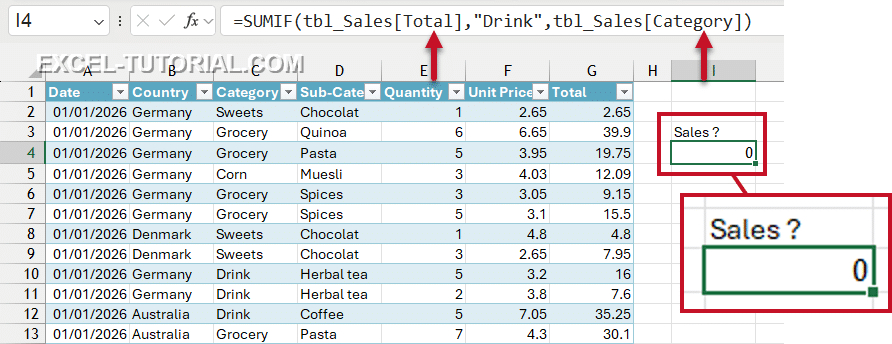
- Copying the formula to other cells: a reference without $ moves when you copy the formula. It must be locked, like $B$1, when it always points to the same cell, for example, a VAT rate.
- Changing a column name: with a Table, the formula uses the names of the columns, like tbl_Sales[Amount]. If you type the name yourself and the spelling is not exactly the same as in your Table, the formula returns an error.
4. The AI often makes the formula too complex
The AI tends to suggest very long formulas, with LET, LAMBDA or nested functions, even when your workbook doesn’t need them.
But complex or nested formulas slow down the workbook. A lighter formula calculates faster, and it is easier to read and to change. If the formula looks too complex to you, ask the AI for a simpler solution (see point 2 of Prompt Tips for Excel).
The best protection: know the formulas
You can only check, adapt, or simplify a formula you understand. That is why we built online exercises: you write the formulas yourself, in a real spreadsheet, and each answer is checked as you type. Start with this free SUMIF exercise:
If the formula returned by the AI is right but you don’t understand it, ask the AI to explain each argument. It’s the best way to learn the function and adapt it yourself next time 😉


