Optimize Your AI Prompts for VBA

Reading time: 3 minutes

Today, programming is done with artificial intelligence, whatever the language, and VBA is no exception. The AI returns code that is often correct, with very few errors.

But correct code is not always well-structured code 😮 In this article, we send the same project to the AI with two different prompts. The simple prompt gives code that is hard to read, with far too many lines in each procedure. The better prompt gives optimized code, written the way a real human developer would.
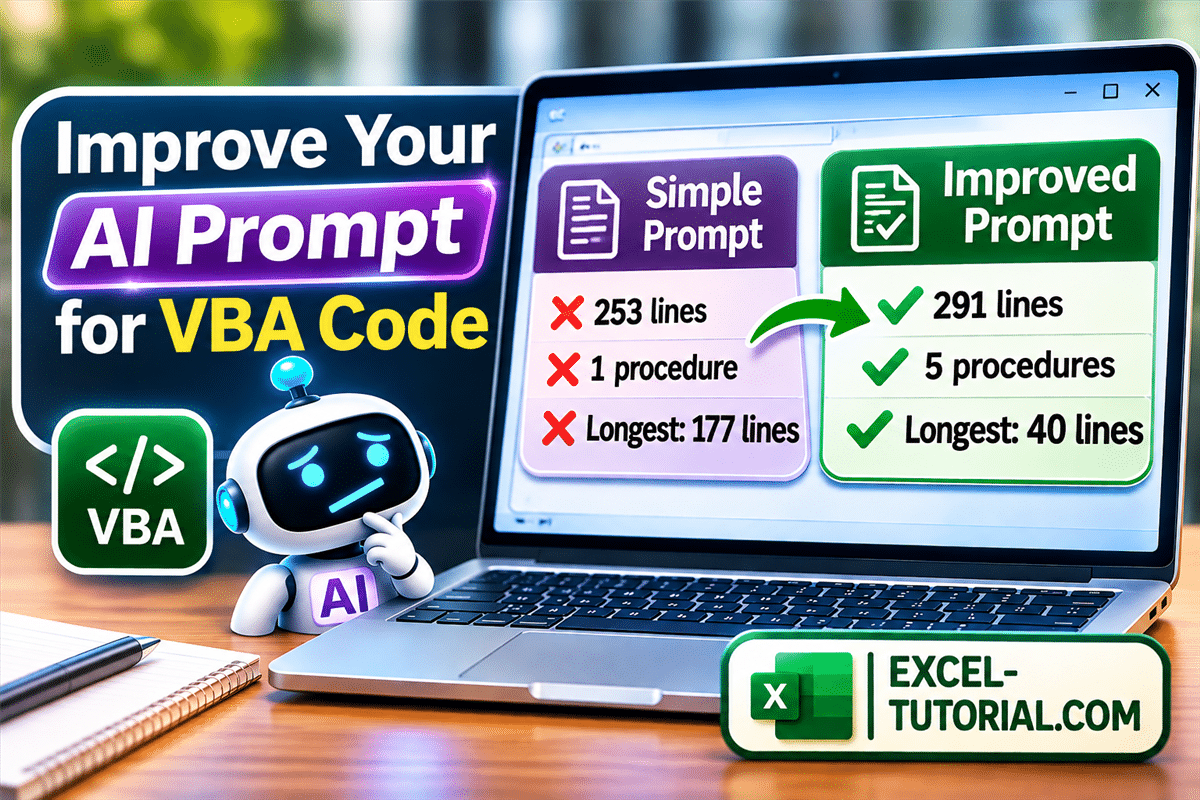
Improve your AI prompt for VBA code: simple prompt versus improved prompt

1. A simple prompt: one long procedure

This is the prompt we sent to ChatGPT:

Write a macro for Excel. My sheet "Sales" has a table with a header row: column A = Date, column B = Sales Rep, column C = Customer, column D = Amount. For each sales rep, create a new sheet with only his sales, format it as a clean table with a total at the bottom, then save this sheet as a PDF file in the same folder as the workbook.

The macro works. But look at the code (download the full code):

  • The main procedure is about 175 lines long: it collects the names, copies the sales, formats the table and exports the PDF, all in the same place.
  • The number of lines in the main procedure is too long. It works, but it’s impossible to review the code.
  • It uses GoTo CleanUp to jump to the end of the procedure. It’s not optimal in VBA to use GoTo techniques

2. A better prompt: ask for an optimal structure

Let’s update our original prompt. This time, we are going to add the command code /vba and also add specific requirements like :

  • Structure the code like a human developer
  • The number of lines per procedure
  • Don’t use GoTo, except On Error GoTo
  • Put the result in one single code block
/vba
Write a macro for Excel. My sheet "Sales" has a table with a header row: column A = Date, column B = Sales Rep, column C = Customer, column D = Amount. For each sales rep, create a new sheet with only his sales, format it as a clean table with a total at the bottom, then save this sheet as a PDF file in the same folder as the workbook.
Structure the code like a human developer: one main procedure that only calls the steps. No procedure or function longer than 25 to 30 lines; when a block gets longer, move it to a separate procedure or function. Group the actions that belong together, and don't create tiny functions for one line of code. Don't use GoTo, except On Error GoTo for error handling.
Put all the code in one single code block, ready to paste into one module.

Now the main procedure reads like a list of steps (download the full code):

For Each rep In reps.Keys
 Set wsReport = CreateReportSheet(wb, CStr(rep))
 PopulateReport wsReport, salesData, CStr(rep)
 FormatReport wsReport
 ExportReportPDF wsReport, outputFolder, CStr(rep)
Next rep

Each step is a separate procedure or function of about 30 lines at most. To change the format of the PDF, you open FormatReport, and nothing else.

💡 The last line of the prompt is important: all the procedures arrive in one single block, and you paste them in one module, in one step.

VBA code from a simple prompt and a better prompt compared: total lines, procedures, functions, longest block and average lines per block

What to remember

To get a professional result, add these points to your prompt:

  • start with /vba;
  • ask for one main procedure that only calls the steps;
  • set a limit: no procedure or function longer than 25 to 30 lines;
  • ask to group the actions that belong together, without tiny one-line functions;
  • no GoTo, except On Error GoTo for error handling;
  • ask for all the code in one single code block.

If you forget these details, you need more prompts to fix the result, and each new prompt uses more tokens.

Practice with exercises

Related articles

Leave a Reply

Your email address will not be published. Required fields are marked *

Optimize Your AI Prompts for VBA

Reading time: 3 minutes

Today, programming is done with artificial intelligence, whatever the language, and VBA is no exception. The AI returns code that is often correct, with very few errors.

But correct code is not always well-structured code 😮 In this article, we send the same project to the AI with two different prompts. The simple prompt gives code that is hard to read, with far too many lines in each procedure. The better prompt gives optimized code, written the way a real human developer would.

Improve your AI prompt for VBA code: simple prompt versus improved prompt

1. A simple prompt: one long procedure

This is the prompt we sent to ChatGPT:

Write a macro for Excel. My sheet "Sales" has a table with a header row: column A = Date, column B = Sales Rep, column C = Customer, column D = Amount. For each sales rep, create a new sheet with only his sales, format it as a clean table with a total at the bottom, then save this sheet as a PDF file in the same folder as the workbook.

The macro works. But look at the code (download the full code):

  • The main procedure is about 175 lines long: it collects the names, copies the sales, formats the table and exports the PDF, all in the same place.
  • The number of lines in the main procedure is too long. It works, but it’s impossible to review the code.
  • It uses GoTo CleanUp to jump to the end of the procedure. It’s not optimal in VBA to use GoTo techniques

2. A better prompt: ask for an optimal structure

Let’s update our original prompt. This time, we are going to add the command code /vba and also add specific requirements like :

  • Structure the code like a human developer
  • The number of lines per procedure
  • Don’t use GoTo, except On Error GoTo
  • Put the result in one single code block
/vba
Write a macro for Excel. My sheet "Sales" has a table with a header row: column A = Date, column B = Sales Rep, column C = Customer, column D = Amount. For each sales rep, create a new sheet with only his sales, format it as a clean table with a total at the bottom, then save this sheet as a PDF file in the same folder as the workbook.
Structure the code like a human developer: one main procedure that only calls the steps. No procedure or function longer than 25 to 30 lines; when a block gets longer, move it to a separate procedure or function. Group the actions that belong together, and don't create tiny functions for one line of code. Don't use GoTo, except On Error GoTo for error handling.
Put all the code in one single code block, ready to paste into one module.

Now the main procedure reads like a list of steps (download the full code):

For Each rep In reps.Keys
 Set wsReport = CreateReportSheet(wb, CStr(rep))
 PopulateReport wsReport, salesData, CStr(rep)
 FormatReport wsReport
 ExportReportPDF wsReport, outputFolder, CStr(rep)
Next rep

Each step is a separate procedure or function of about 30 lines at most. To change the format of the PDF, you open FormatReport, and nothing else.

💡 The last line of the prompt is important: all the procedures arrive in one single block, and you paste them in one module, in one step.

VBA code from a simple prompt and a better prompt compared: total lines, procedures, functions, longest block and average lines per block

What to remember

To get a professional result, add these points to your prompt:

  • start with /vba;
  • ask for one main procedure that only calls the steps;
  • set a limit: no procedure or function longer than 25 to 30 lines;
  • ask to group the actions that belong together, without tiny one-line functions;
  • no GoTo, except On Error GoTo for error handling;
  • ask for all the code in one single code block.

If you forget these details, you need more prompts to fix the result, and each new prompt uses more tokens.

Practice with exercises

Related articles

Leave a Reply

Your email address will not be published. Required fields are marked *