Excel Tutorial
Excel tutorials, quizzes & AI guides — all levels
RSS
  • Online Excel Exercises
  • Training
  • Excel Tests
  • Sitemap
  • Premium Quizzes
  • Shop
  • My account

CONCAT vs CONCATENATE in Excel: What Actually Changed

Text functions
Reading time: 2 minutes
Views: 38

If you learned Excel a few years ago, you joined text with CONCATENATE. Microsoft has replaced it with CONCAT — and the difference is not cosmetic.

The real difference: ranges

CONCATENATE only accepts values listed one by one:

=CONCATENATE(A2,B2,C2,D2)

Write =CONCATENATE(A2:D2) and it does not do what you expect. CONCAT does:

=CONCAT(A2:D2)

Four columns in twelve characters. On twenty columns the gap stops being a detail: one formula against twenty arguments, each of which can be mistyped.
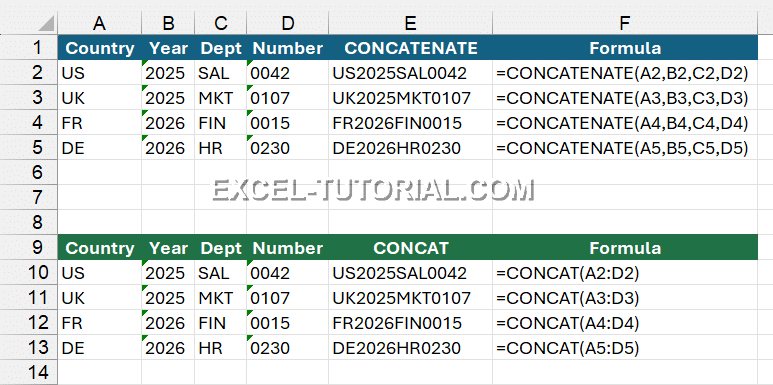
CONCATENATE and CONCAT side by side: same result, very different formula length

💡 An easy way to remember it: the longer the name, the more arguments.

  • CONCATENATE, the long name: every cell, one by one.
  • CONCAT, the short name: only one range.

Is CONCATENATE dead?

No. Microsoft keeps it so that old workbooks keep working, and it has not announced any removal date. Your existing files are safe — there is no need to rewrite anything.

But Microsoft describes it as replaced, and all its documentation now points to CONCAT. The sensible rule:

  • Old file → leave the CONCATENATE where they are.
  • New formula → write CONCAT, or TEXTJOIN if you need a separator.

The version trap

CONCAT needs Excel 2019, Microsoft 365 or Excel for the web. CONCATENATE works everywhere, back to the oldest versions.

So if you share a file with colleagues still on Excel 2016, your CONCAT will show them #NAME? — Excel saying it does not know that function. In that situation the safest choice is neither of the two: use the & operator, which has worked in every version since the beginning.

In one line

CONCAT is CONCATENATE plus ranges. And if you also need a separator, or empty cells skipped, the answer is neither — it is TEXTJOIN.

Now practise

Join text in a real spreadsheet, free and corrected as you type: six steps, with the & operator, then CONCAT, then TEXTJOIN.

CONCAT Exercise - Join last name, first name and city (and build an email)

Combine last name and first name into one cell using &, CONCAT and TEXTJOIN, with UPPER/LOWER for formatting — 6 guided steps.

=cell & " " & cell

1 / 6

Join first name + space + last name

Text — Q1 · 151

=B2&" "&A2

=CONCAT( … , " " , … )

2 / 6

Same thing with CONCAT

Text — Q2 · 152

=CONCAT(B2," ",A2)

=UPPER(…) & " " & …

3 / 6

Format "LAST NAME First name" (last name in uppercase)

Text — Q3 · 153

=UPPER(A2)&" "&B2

="Hello Mr. " & cell

4 / 6

Greeting line: "Hello Mr. Dupont"

Text — Q4 · 154

="Hello Mr. "&A2

=TEXTJOIN( delimiter , ignore_empty , … )

5 / 6

Join Last name, First name and City with TEXTJOIN

Text — Q5 · 155

=TEXTJOIN(", ",TRUE,A2,B2,C2)

=LOWER( … & "." & … & "@company.com" )

6 / 6

Build an email: firstname.lastname@company.com

Text — Q6 · 156

=LOWER(B2&"."&A2&"@company.com")

Your score is

0%

Related Articles

  • CONCAT vs TEXTJOIN in Excel: Which One Should You Use?
  • Meaning of the sign & in Excel?
  • Build Email Addresses from First and Last Name in Excel

Frédéric LE GUEN

CONCAT, Text functions

Leave a Reply Cancel reply

Your email address will not be published. Required fields are marked *

Most Viewed Posts

  • Displaying Negative Numbers in Parentheses in Excel (310,065)
  • Top 10 Excel Functions You Must Know (232,001)
  • How to make automatic calendar in Excel (212,775)
  • Dash for a zero in Excel automatically (190,813)
  • Converting a Date from YYYYMMDD to DD/MM/YYYY in Excel (171,034)
image excel exercises
Excel Exercises
image excel quizzes
Excel Quizzes

CONCAT vs CONCATENATE in Excel: What Actually Changed

Reading time: 2 minutes
Views: 38

If you learned Excel a few years ago, you joined text with CONCATENATE. Microsoft has replaced it with CONCAT — and the difference is not cosmetic.

The real difference: ranges

CONCATENATE only accepts values listed one by one:

=CONCATENATE(A2,B2,C2,D2)

Write =CONCATENATE(A2:D2) and it does not do what you expect. CONCAT does:

=CONCAT(A2:D2)

Four columns in twelve characters. On twenty columns the gap stops being a detail: one formula against twenty arguments, each of which can be mistyped.

CONCATENATE and CONCAT side by side: same result, very different formula length

💡 An easy way to remember it: the longer the name, the more arguments.

  • CONCATENATE, the long name: every cell, one by one.
  • CONCAT, the short name: only one range.

Is CONCATENATE dead?

No. Microsoft keeps it so that old workbooks keep working, and it has not announced any removal date. Your existing files are safe — there is no need to rewrite anything.

But Microsoft describes it as replaced, and all its documentation now points to CONCAT. The sensible rule:

  • Old file → leave the CONCATENATE where they are.
  • New formula → write CONCAT, or TEXTJOIN if you need a separator.

The version trap

CONCAT needs Excel 2019, Microsoft 365 or Excel for the web. CONCATENATE works everywhere, back to the oldest versions.

So if you share a file with colleagues still on Excel 2016, your CONCAT will show them #NAME? — Excel saying it does not know that function. In that situation the safest choice is neither of the two: use the & operator, which has worked in every version since the beginning.

In one line

CONCAT is CONCATENATE plus ranges. And if you also need a separator, or empty cells skipped, the answer is neither — it is TEXTJOIN.

Now practise

Join text in a real spreadsheet, free and corrected as you type: six steps, with the & operator, then CONCAT, then TEXTJOIN.

CONCAT Exercise - Join last name, first name and city (and build an email)

Combine last name and first name into one cell using &, CONCAT and TEXTJOIN, with UPPER/LOWER for formatting — 6 guided steps.

=cell & " " & cell

1 / 6

Join first name + space + last name

Text — Q1 · 151

=B2&" "&A2

=CONCAT( … , " " , … )

2 / 6

Same thing with CONCAT

Text — Q2 · 152

=CONCAT(B2," ",A2)

=UPPER(…) & " " & …

3 / 6

Format "LAST NAME First name" (last name in uppercase)

Text — Q3 · 153

=UPPER(A2)&" "&B2

="Hello Mr. " & cell

4 / 6

Greeting line: "Hello Mr. Dupont"

Text — Q4 · 154

="Hello Mr. "&A2

=TEXTJOIN( delimiter , ignore_empty , … )

5 / 6

Join Last name, First name and City with TEXTJOIN

Text — Q5 · 155

=TEXTJOIN(", ",TRUE,A2,B2,C2)

=LOWER( … & "." & … & "@company.com" )

6 / 6

Build an email: firstname.lastname@company.com

Text — Q6 · 156

=LOWER(B2&"."&A2&"@company.com")

Your score is

0%

Related Articles

  • CONCAT vs TEXTJOIN in Excel: Which One Should You Use?
  • Meaning of the sign & in Excel?
  • Build Email Addresses from First and Last Name in Excel
Tags: CONCATText functions

Frédéric LE GUEN

Leave a Reply Cancel reply

Your email address will not be published. Required fields are marked *

Contact us
About me 
Privacy Policy

© 2022 – 2026 – excel-tutorial.com. All Rights Reserved.
Excel Tutorial is managed by majordome du net

Contact us
About me 
Privacy Policy

© 2022 – 2026 – excel-tutorial.com. All Rights Reserved.
Excel Tutorial is managed by majordome du net