CONCAT and TEXTJOIN both join text in Excel, and at first sight they do the same job. They do not. One of them asks you where the separator goes and what to do with empty cells — the other does not ask anything, and that is exactly where lists break.
CONCAT glues, and that is all
CONCAT takes your values and sticks them end to end. Its one real strength is that it accepts a whole range:
=CONCAT(A2:D2)
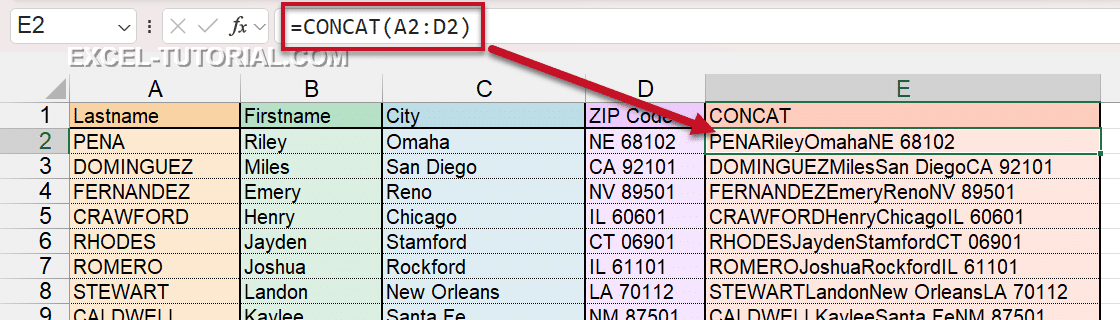
⚠️ But the result is PENARileyOmahaNE 68102 — unreadable. CONCAT has no separator. To get spaces or commas, you are back to listing every value one by one, which cancels the advantage.
TEXTJOIN asks the two right questions
=TEXTJOIN(separator, ignore_empty, text1, text2, …)
- separator — written once, applied everywhere
- ignore_empty — TRUE to skip empty cells, FALSE to keep them
=TEXTJOIN(", ",TRUE,A2:C2)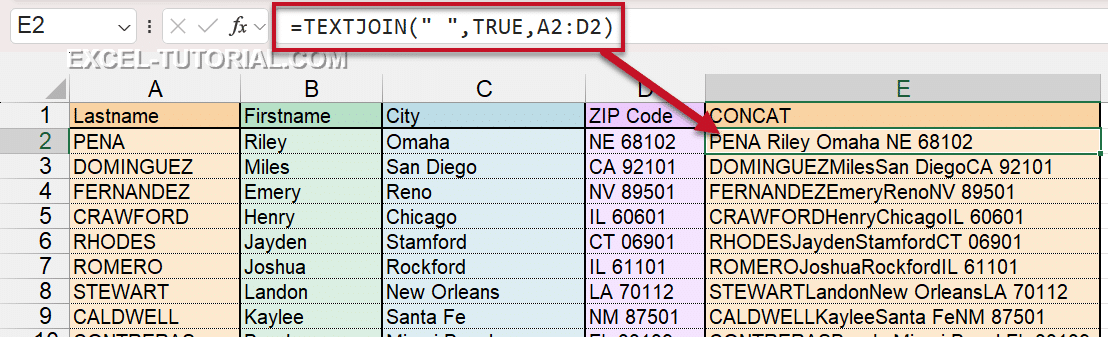
The argument that settles it: the empty cell
Take an address whose second line is often blank:
| Formula | Result |
|---|---|
| =CONCAT and the & operator | 12 Oak Street, , London |
| =TEXTJOIN(", ",FALSE,A2:C2) | 12 Oak Street, , London |
| =TEXTJOIN(", ",TRUE,A2:C2) | 12 Oak Street, London ✅ |
Those double commas are what makes a mailing list look broken. TEXTJOIN with TRUE is the only one that removes them — without a single IF.
Try it right now
👉 Six steps, free, corrected as you type: join a first and last name, then do the same with CONCAT, then with TEXTJOIN. It is a real spreadsheet — start in cell E2.
Which one, and when
- Two or three values, always filled in → the & operator. Shortest to write.
- A whole range, no separator needed → CONCAT.
- A list, a separator, possible gaps → TEXTJOIN. Every time.
⚠️ Both need Excel 2019 or Microsoft 365. On an older version, they return #NAME? — see what changed between CONCAT and CONCATENATE.
Next: keep your date format when joining text · build email addresses from a name list · and the reverse operation with TEXTSPLIT.


