Excel Tutorial
Excel tutorials, quizzes & AI guides — all levels
RSS
  • Online Excel Exercises
  • Training
  • Excel Tests
  • Sitemap
  • Premium Quizzes
  • Shop
  • My account

COUNT vs COUNTA vs COUNTBLANK in Excel: What’s the Difference?

Statistical functions
Reading time: 2 minutes
Views: 12

Excel has three functions that all count cells, and yet they almost never return the same number. COUNT, COUNTA and COUNTBLANK look the same, but each one counts a different kind of content. Choosing the wrong one is one of the most common reasons a total does not match reality.

Try it right now

Here is a situation every Excel user meets one day: an attendance list filled in by several people. Some typed Yes or No, others typed 1 or 0, and a few left the cell empty. Diagnose this list in 8 steps, free and corrected as you type:

COUNT, COUNTA and COUNTBLANK Exercise - Spot data entry errors in an attendance list

Diagnose a messy attendance list (mixed Yes/No, 1/0 and blanks) with COUNT, COUNTA, COUNTBLANK and ISTEXT, then fix the inconsistent entries — 8 guided steps.

=COUNT( range )

1 / 8

How many cells in the Present column contain a numeric value?

Attendance list — Q1 · 351

=COUNT(C2:C16)

=COUNTA( range )

2 / 8

How many cells in the Present column are filled in (not empty)?

Attendance list — Q2 · 352

=COUNTA(C2:C16)

=COUNTBLANK( range )

3 / 8

How many people were not checked in at all?

Attendance list — Q3 · 353

=COUNTBLANK(C2:C16)

= COUNTA(...) - COUNT(...)

4 / 8

How many cells contain text instead of a number? (hint: COUNTA counts everything, COUNT only numbers)

Attendance list — Q4 · 354

=COUNTA(C2:C16)-COUNT(C2:C16)

=ISTEXT( cell )

5 / 8

The Present column mixes numbers and text. In D2, test whether C2 contains text with the ISTEXT function.

Attendance list — Q5 · 355

=ISTEXT(C2)

6 / 8

Fill the formula from D2 down for every person. Notice the TRUE/FALSE alternation.

Attendance list — Q6 · 356

=ISTEXT(C16)

=IF( ISTEXT(...) , IF( ... ) , value )

7 / 8

Write a formula that fixes C2: if it is the text "Yes" → return 1, if it is the text "No" → return 0, otherwise keep the value as is.

Attendance list — Q7 · 357

=IF(ISTEXT(C2),IF(C2="Yes",1,0),C2)

=IFS( cond1 , result1 , cond2 , result2 , TRUE , default )

8 / 8

Same exercise, but this time with IFS: write a single formula that handles the 3 cases — "Yes" → 1, "No" → 0, otherwise the original value.

Attendance list — Q8 · 358

=IFS(C3="Yes",1,C3="No",0,TRUE,C3)

Your score is

0%

COUNT counts numbers only

=COUNT(C2:C16)

COUNT counts the cells that contain a number: whole numbers, decimals, and also dates, because Excel stores dates as numbers. It ignores text, empty cells, TRUE/FALSE and errors.

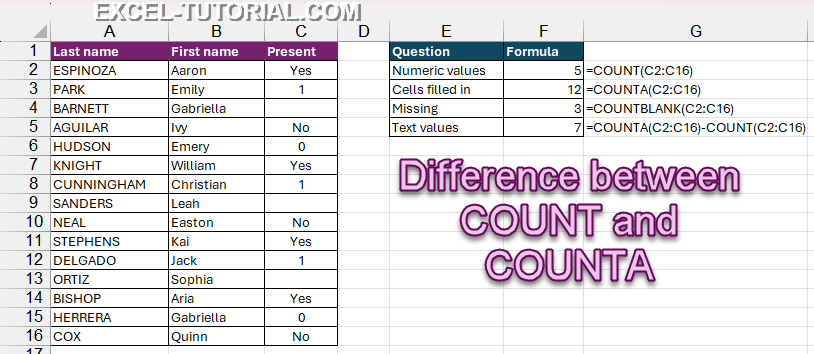
On the attendance list, COUNT returns 5, not 15. Only five people were recorded with a number.

💡 That is why COUNT is the fastest way to check that a column is really numeric. If COUNT returns less than the number of rows, some values are text, and every SUM built on that column is already wrong.

COUNTA counts everything that is not empty

=COUNTA(C2:C16)

The A stands for All. COUNTA counts every cell that contains something: numbers, text, dates, TRUE/FALSE and even errors. Only a truly empty cell is left out.
Difference between COUNT and COUNTA

⚠️ The trap: a formula that returns an empty text, like =IF(A2>10,”OK”,””), looks empty on screen. But the cell contains a formula, so COUNTA counts it.

COUNTBLANK counts what is missing

=COUNTBLANK(C2:C16)

COUNTBLANK does the opposite: it counts the empty cells. Use it to check a form, an import or a survey: how many answers are still missing?

And here is the contradiction: COUNTBLANK also counts a cell with an empty text “” returned by a formula, while COUNTA counts that same cell as filled. On a column of formulas, COUNTA + COUNTBLANK can be bigger than the number of rows. Neither function is wrong: they simply do not use the same definition of “empty”.

Use the three together to audit a column

Side by side, the three functions become a diagnostic tool. Excel has no COUNTTEXT function, but you can build it by subtraction: COUNTA counts everything, COUNT counts only the numbers, so the difference is the number of text entries.

=COUNTA(C2:C16)-COUNT(C2:C16)

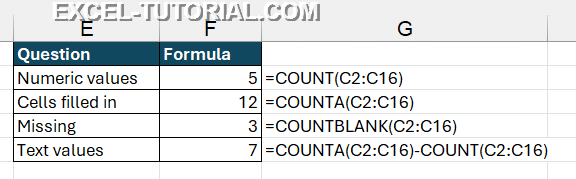
On the attendance list, the four results are 5, 12, 3 and 7:

  • 5 numeric values (COUNT);
  • 12 cells filled in (COUNTA);
  • 3 people never checked in (COUNTBLANK);
  • 7 answers typed as text (COUNTA − COUNT).
COUNT COUNTA COUNTBLANK side by side

The column isn’t broken: it was just filled in two different ways, and now you know how many of each. The full exercise above then shows how to find the text cells with ISTEXT and fix them with IF.

As soon as you need a condition, for example count only the “Yes”, use COUNTIF, or COUNTIFS for several criteria.

Related Articles

  • COUNTIF Function in Excel: A Must-Know Function
  • COUNTIFS Function: Mastering Multi-Criteria Counting
  • TOP 10 Most Useful Statistical Functions for Data Analysis
  • Remove Duplicates in Excel: Tools and Formulas

Frédéric LE GUEN

count, COUNTA, Statistics

Leave a Reply Cancel reply

Your email address will not be published. Required fields are marked *

Most Viewed Posts

  • Displaying Negative Numbers in Parentheses in Excel (310,065)
  • Top 10 Excel Functions You Must Know (232,001)
  • How to make automatic calendar in Excel (212,775)
  • Dash for a zero in Excel automatically (190,812)
  • Converting a Date from YYYYMMDD to DD/MM/YYYY in Excel (171,033)
image excel exercises
Excel Exercises
image excel quizzes
Excel Quizzes

COUNT vs COUNTA vs COUNTBLANK in Excel: What’s the Difference?

Reading time: 2 minutes
Views: 12

Excel has three functions that all count cells, and yet they almost never return the same number. COUNT, COUNTA and COUNTBLANK look the same, but each one counts a different kind of content. Choosing the wrong one is one of the most common reasons a total does not match reality.

Try it right now

Here is a situation every Excel user meets one day: an attendance list filled in by several people. Some typed Yes or No, others typed 1 or 0, and a few left the cell empty. Diagnose this list in 8 steps, free and corrected as you type:

COUNT, COUNTA and COUNTBLANK Exercise - Spot data entry errors in an attendance list

Diagnose a messy attendance list (mixed Yes/No, 1/0 and blanks) with COUNT, COUNTA, COUNTBLANK and ISTEXT, then fix the inconsistent entries — 8 guided steps.

=COUNT( range )

1 / 8

How many cells in the Present column contain a numeric value?

Attendance list — Q1 · 351

=COUNT(C2:C16)

=COUNTA( range )

2 / 8

How many cells in the Present column are filled in (not empty)?

Attendance list — Q2 · 352

=COUNTA(C2:C16)

=COUNTBLANK( range )

3 / 8

How many people were not checked in at all?

Attendance list — Q3 · 353

=COUNTBLANK(C2:C16)

= COUNTA(...) - COUNT(...)

4 / 8

How many cells contain text instead of a number? (hint: COUNTA counts everything, COUNT only numbers)

Attendance list — Q4 · 354

=COUNTA(C2:C16)-COUNT(C2:C16)

=ISTEXT( cell )

5 / 8

The Present column mixes numbers and text. In D2, test whether C2 contains text with the ISTEXT function.

Attendance list — Q5 · 355

=ISTEXT(C2)

6 / 8

Fill the formula from D2 down for every person. Notice the TRUE/FALSE alternation.

Attendance list — Q6 · 356

=ISTEXT(C16)

=IF( ISTEXT(...) , IF( ... ) , value )

7 / 8

Write a formula that fixes C2: if it is the text "Yes" → return 1, if it is the text "No" → return 0, otherwise keep the value as is.

Attendance list — Q7 · 357

=IF(ISTEXT(C2),IF(C2="Yes",1,0),C2)

=IFS( cond1 , result1 , cond2 , result2 , TRUE , default )

8 / 8

Same exercise, but this time with IFS: write a single formula that handles the 3 cases — "Yes" → 1, "No" → 0, otherwise the original value.

Attendance list — Q8 · 358

=IFS(C3="Yes",1,C3="No",0,TRUE,C3)

Your score is

0%

COUNT counts numbers only

=COUNT(C2:C16)

COUNT counts the cells that contain a number: whole numbers, decimals, and also dates, because Excel stores dates as numbers. It ignores text, empty cells, TRUE/FALSE and errors.

On the attendance list, COUNT returns 5, not 15. Only five people were recorded with a number.

💡 That is why COUNT is the fastest way to check that a column is really numeric. If COUNT returns less than the number of rows, some values are text, and every SUM built on that column is already wrong.

COUNTA counts everything that is not empty

=COUNTA(C2:C16)

The A stands for All. COUNTA counts every cell that contains something: numbers, text, dates, TRUE/FALSE and even errors. Only a truly empty cell is left out.

Difference between COUNT and COUNTA

⚠️ The trap: a formula that returns an empty text, like =IF(A2>10,”OK”,””), looks empty on screen. But the cell contains a formula, so COUNTA counts it.

COUNTBLANK counts what is missing

=COUNTBLANK(C2:C16)

COUNTBLANK does the opposite: it counts the empty cells. Use it to check a form, an import or a survey: how many answers are still missing?

And here is the contradiction: COUNTBLANK also counts a cell with an empty text “” returned by a formula, while COUNTA counts that same cell as filled. On a column of formulas, COUNTA + COUNTBLANK can be bigger than the number of rows. Neither function is wrong: they simply do not use the same definition of “empty”.

Use the three together to audit a column

Side by side, the three functions become a diagnostic tool. Excel has no COUNTTEXT function, but you can build it by subtraction: COUNTA counts everything, COUNT counts only the numbers, so the difference is the number of text entries.

=COUNTA(C2:C16)-COUNT(C2:C16)

On the attendance list, the four results are 5, 12, 3 and 7:

  • 5 numeric values (COUNT);
  • 12 cells filled in (COUNTA);
  • 3 people never checked in (COUNTBLANK);
  • 7 answers typed as text (COUNTA − COUNT).
COUNT COUNTA COUNTBLANK side by side

The column isn’t broken: it was just filled in two different ways, and now you know how many of each. The full exercise above then shows how to find the text cells with ISTEXT and fix them with IF.

As soon as you need a condition, for example count only the “Yes”, use COUNTIF, or COUNTIFS for several criteria.

Related Articles

  • COUNTIF Function in Excel: A Must-Know Function
  • COUNTIFS Function: Mastering Multi-Criteria Counting
  • TOP 10 Most Useful Statistical Functions for Data Analysis
  • Remove Duplicates in Excel: Tools and Formulas
Tags: countCOUNTAStatistics

Frédéric LE GUEN

Leave a Reply Cancel reply

Your email address will not be published. Required fields are marked *

Contact us
About me 
Privacy Policy

© 2022 – 2026 – excel-tutorial.com. All Rights Reserved.
Excel Tutorial is managed by majordome du net

Contact us
About me 
Privacy Policy

© 2022 – 2026 – excel-tutorial.com. All Rights Reserved.
Excel Tutorial is managed by majordome du net