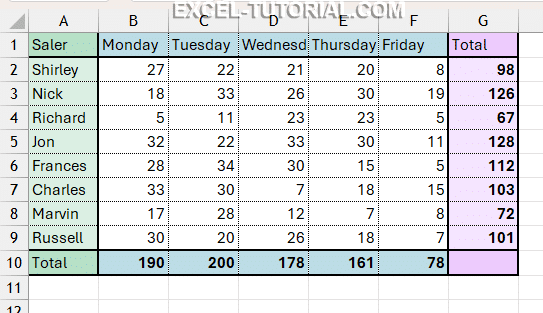
Quick Analysis is the name given to the icon that appears after making a selection in your spreadsheet.

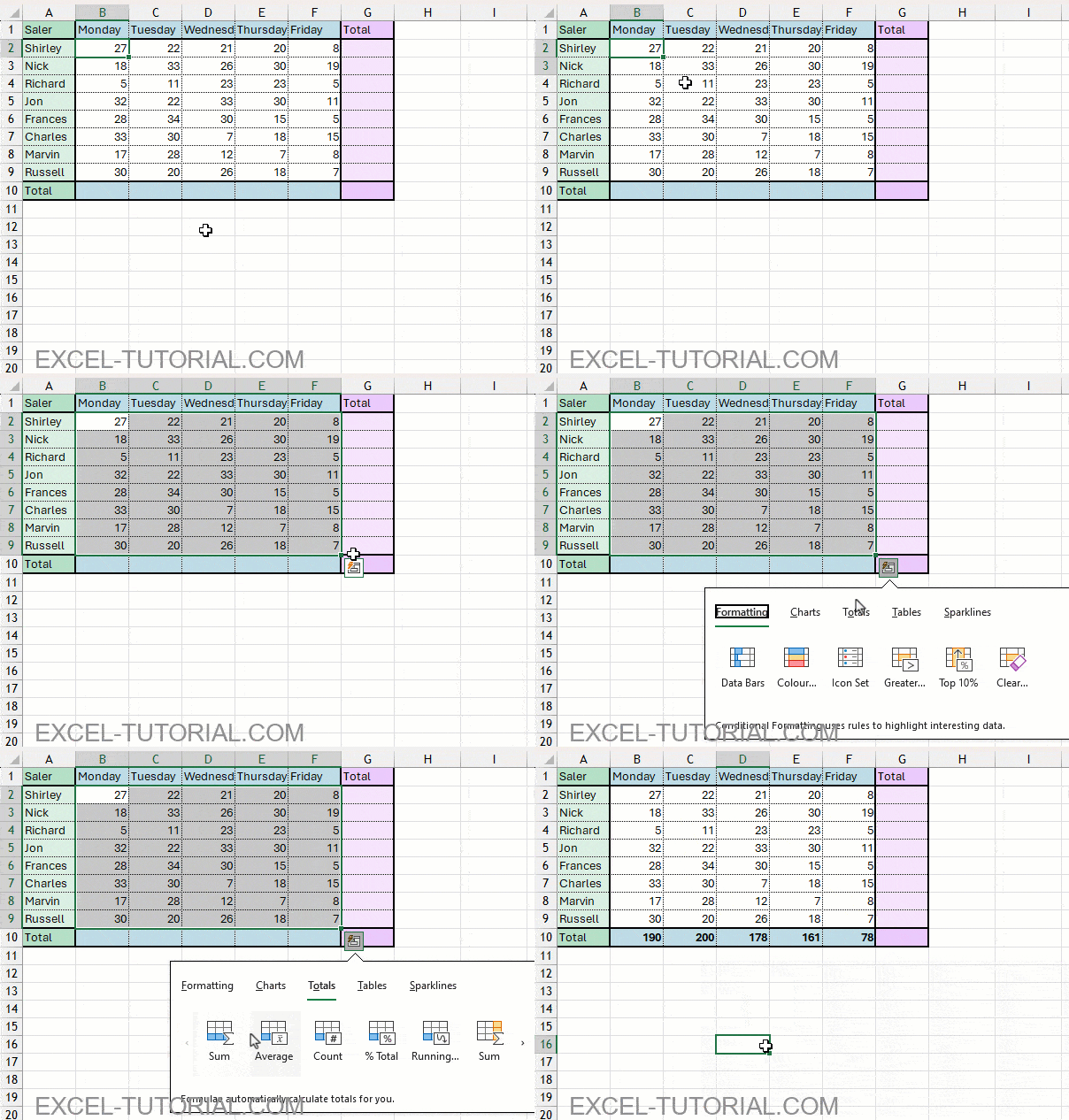
- Select all cells with numbers
- The Quick Analysis icon is displayed at the bottom right
- Select the menu Totals
- Finally, select the Blue Sum option (the icon has the symbol Σ and a blue line for the Total)

The sum of all columns is instantly calculated and added to the row below the selected range.
Same trick for rows
Now, if you want to sum all the cells of the same row, the technique is the same.
- Select the cells you want to add
- Click the Quick Analysis icon
- Go to the Totals tab
- Select the Yellow Sum option (symbol Σ and a yellow column for the Total)

The result is as follows.